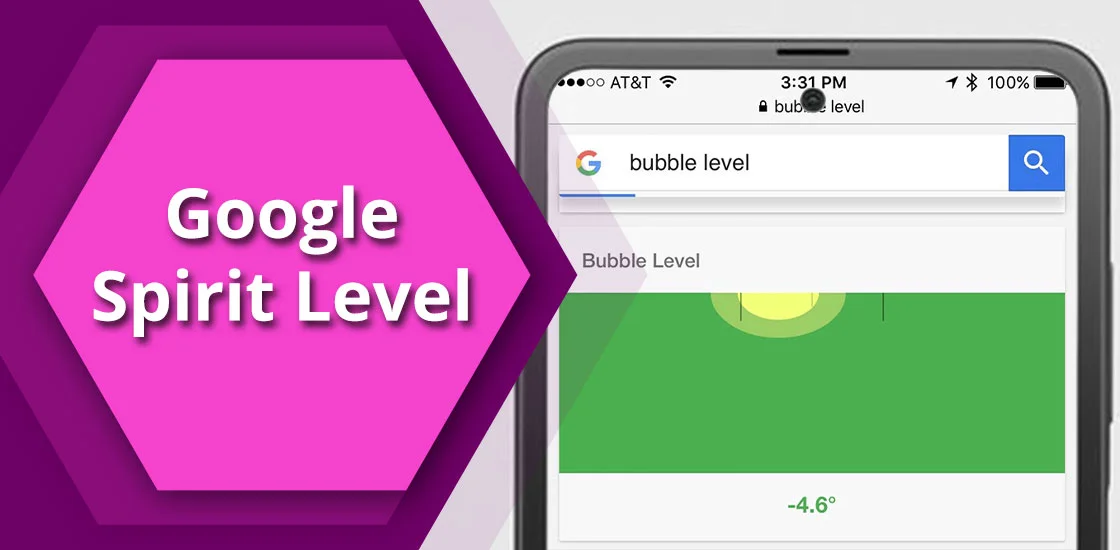
Have you ever thought of measuring a surface while hanging a picture on the wall, or how much you need to cut a piece of wood to align with a surface? All of these tasks can be done through an online web-accessible measuring tool called Google Spirit Level. Using Bubble Level on your phone’s browser, you can easily measure the area by placing your phone on the surface while keeping it on. The interactive interface of the tool will tell you how much you need to tilt or shift to achieve the required position.
We have covered this tool in detail here – everything from how to access to use cases and alternatives.
Quick recap!
- Tool Info: Google Spirit Level is a quick surface measuring tool operational on mobile devices only.
- How It Works: The tool uses the phone’s motion sensors, like the accelerometer and gyroscope, to determine the result.
- How To Use: Users need to place the device on the surface while accessing Google Spirit Level tool online.
- Accessibility: Open the mobile browser (like Chrome or Safari) > search Google.com > Type “Google Spirit Level or Bubble Level”,> and you see a green interface and a moving screen as you shift your device.
What Is Google Spirit Level?
Google Spirit or Bubble Level is an online measurement tool for the surface and edges. The tool is a dedicated browser-based feature, which is built by Google as a portable option to measure any surface. It’s a free tool and works on phone’s motion sensor called an accelerometer and gyroscope. That is the reason it’s accessible only on a mobile browser, not a desktop.
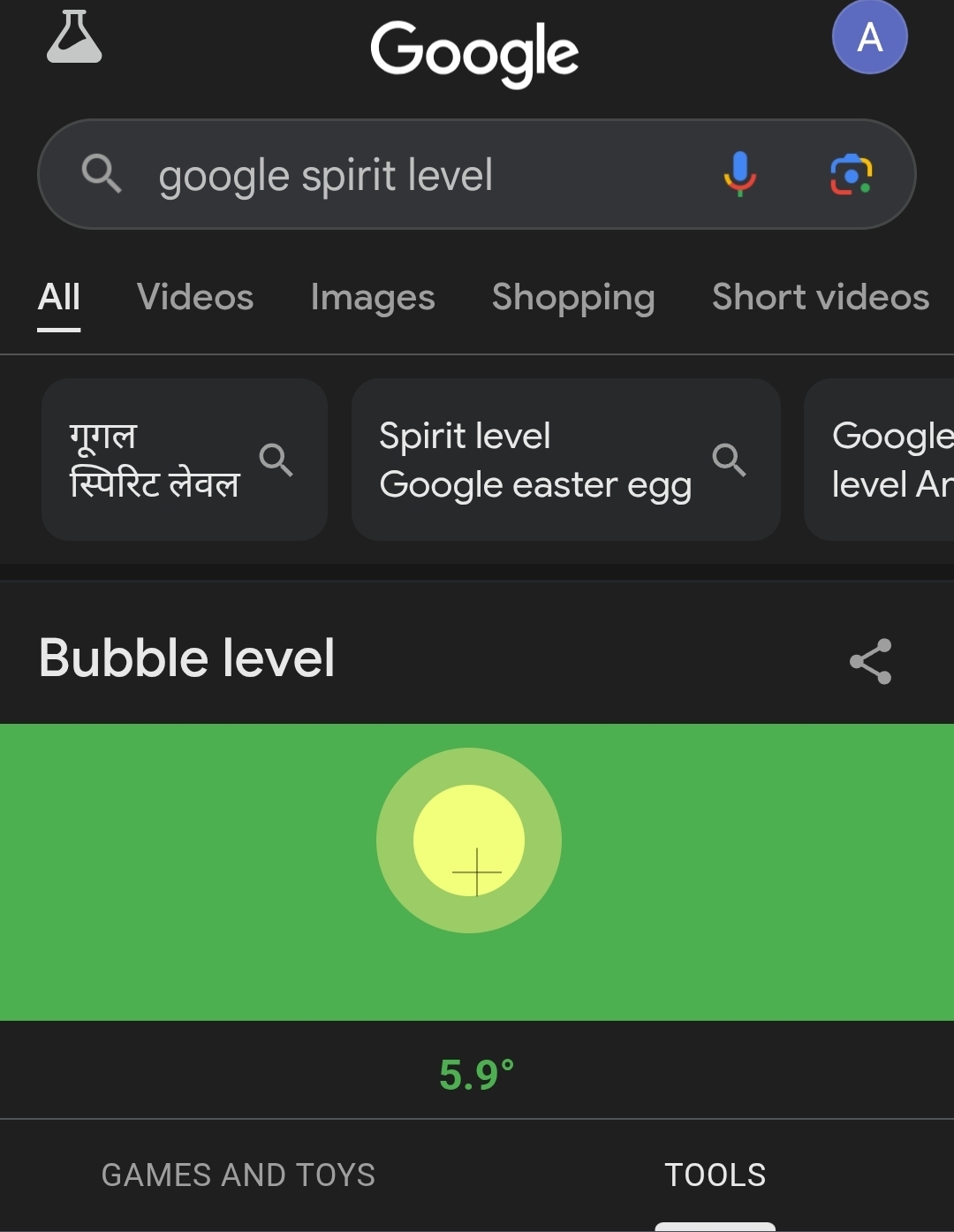
You don’t need to download the app for it. Just type “Google Spirit Level” in Google, and the feature is displayed as the top result of serps, right in front of you. As you move your phone, you can see the bubble’s movement within the spirit level, measuring the surface where your device is kept.
How To Open Google Spirit Level (Step-By-Step)
If you’re using Android, finding a spirit level is easier on the browser. But, for iOS smartphones, the feature is “measure app,” which is available in the utility folder. Understand how to access online surface measurement tools on iOS and Android.
On Android (Google Spirit Level)
- Open your Browser, Chrome or any other, on your smartphone.
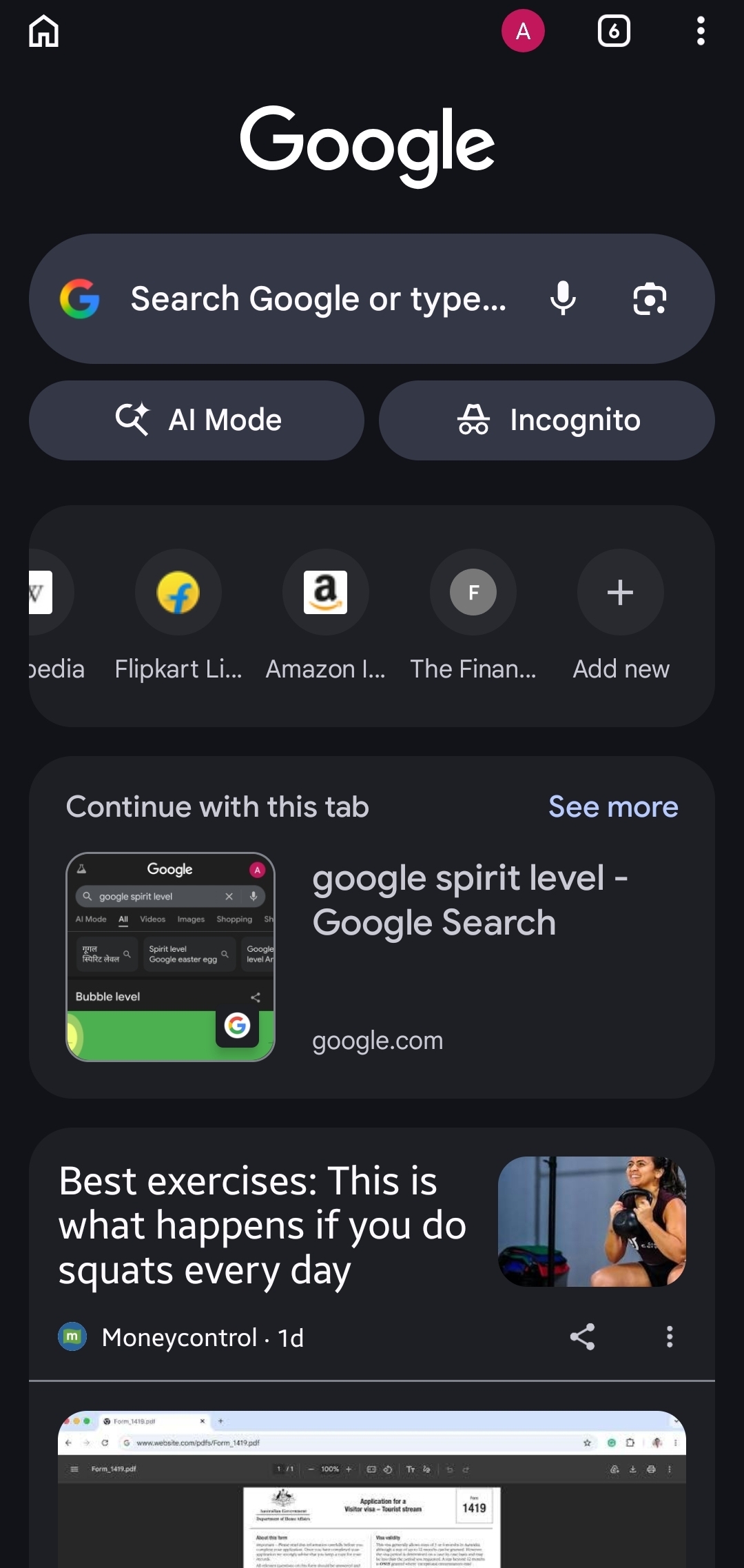
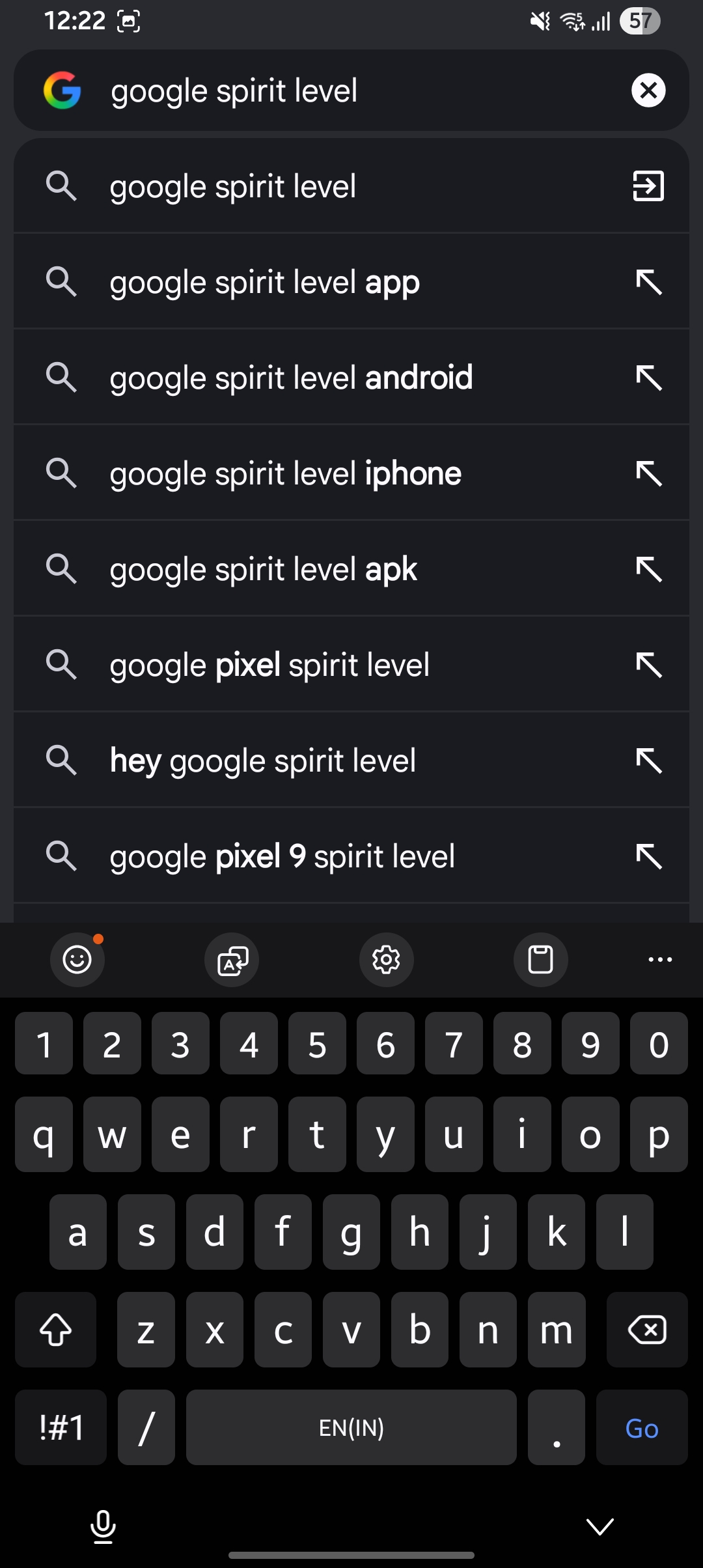
- Type “Google Spirit Level” in the search bar.
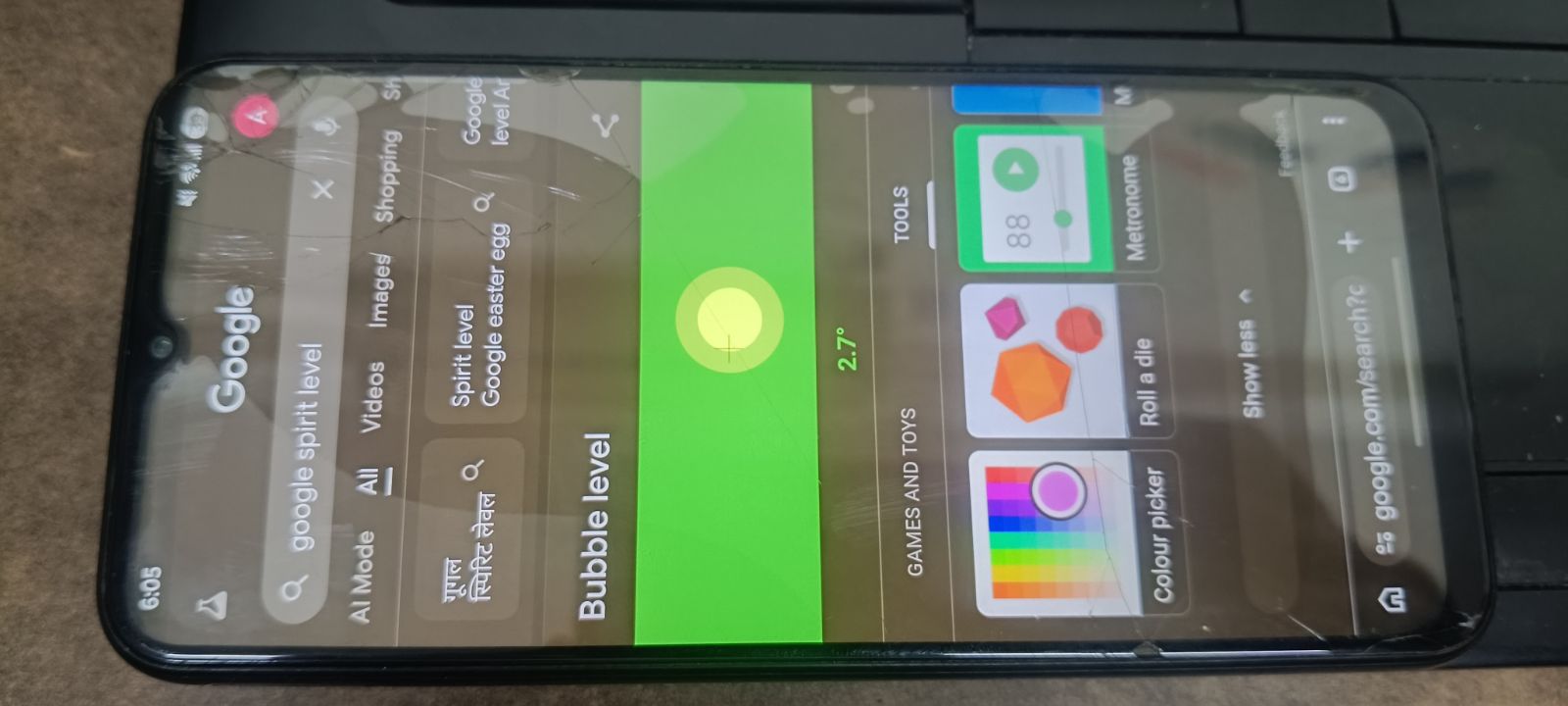
- You will see a green interface with a bubble moving around.
- Put your phone against the surface you want to measure while keeping the tool open.
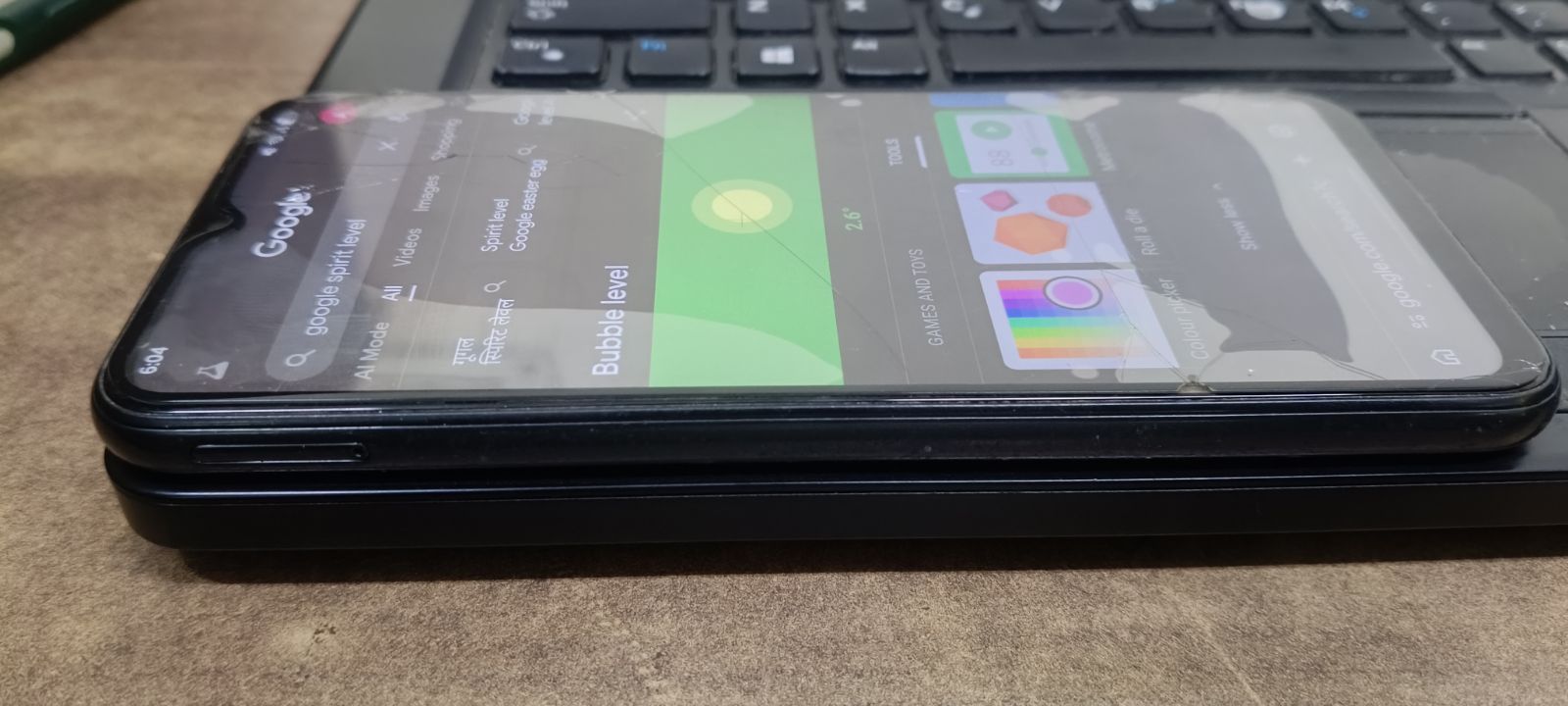
- Check the level of the surface on the screen: whether it’s tilted or stable.
On iPhone (Measure App)
While measuring the surface on the iPhone, the goal is to achieve the green screen.
- Open the Measure app.
- Select Level.
- Hold your iPhone against the object horizontally, vertically or flat.
- Match the surface by rotating the object and your device.
Note: If iOS users want to use only the Google Bubble Level, they can do so by searching the bubble level in Safari browser. Make sure the device has a stable internet connection.
How To Use Google Spirit Level Properly
Learn a step-by-step procedure to measure any surface using Google Spirit Level.
- Flat surface measurement: If you’re measuring a horizontal surface, make sure you place the phone parallel to the surface. If possible, move the object and see if the tool shows you the “level” positioning, which would be 0° on the tool. That means, you’re absolutely in the middle of it.
- Vertical surface measurement: Similar to the horizontal surface, to measure vertically, place your phone along with the object and keep moving until the measurement indicator (circle) shows you in the centre.
- Reading degrees: If you need a specific measurement, focus on the degrees flashing at the bottom. As you move your phone, these measurements change. So, you can adjust accordingly.
- Calibration tips: Put your phone at a known spot on the surface of the object. It helps in measuring the angle and tilt perfectly and easily.
- Remove Phone Case: For a better alignment, practice removing the phone cover and putting the phone in alignment with the surface.
Is Google Spirit Level Accurate?
The Google Bubble level, also known as a spirit level, is accurate for most general measurements. For example, measuring an angle or level, working on your DIY project and wanting to hang the picture straight, and most household alignments. But, a few external objects like phone case and camera bumps can hinder your measurement accuracy. So, keep that in mind when you use the tool.
However, it’s definitely not an ideal choice for professional work, such as carpentry or construction, where accurate measurements are required.
So, we can say, Google Spirit is reliable for most household measurements, but not for professional precision work. For that, you can use physical bubble levels.
Why Google Spirit Level Is Not Showing (Fixes)
Sometimes your Google Spirit level feature does not respond. There are many reasons behind that. We will discuss each one with its fix.
Problem 1: Not using a mobile
The online bubble level feature is specific to mobile devices. If you search it on a desktop, it will not work.
Fix: Access it on the mobile browser always.
Problem 2: Outdated browser
Since it’s an online feature working on your browser, if outdated, it may not respond to the older version.
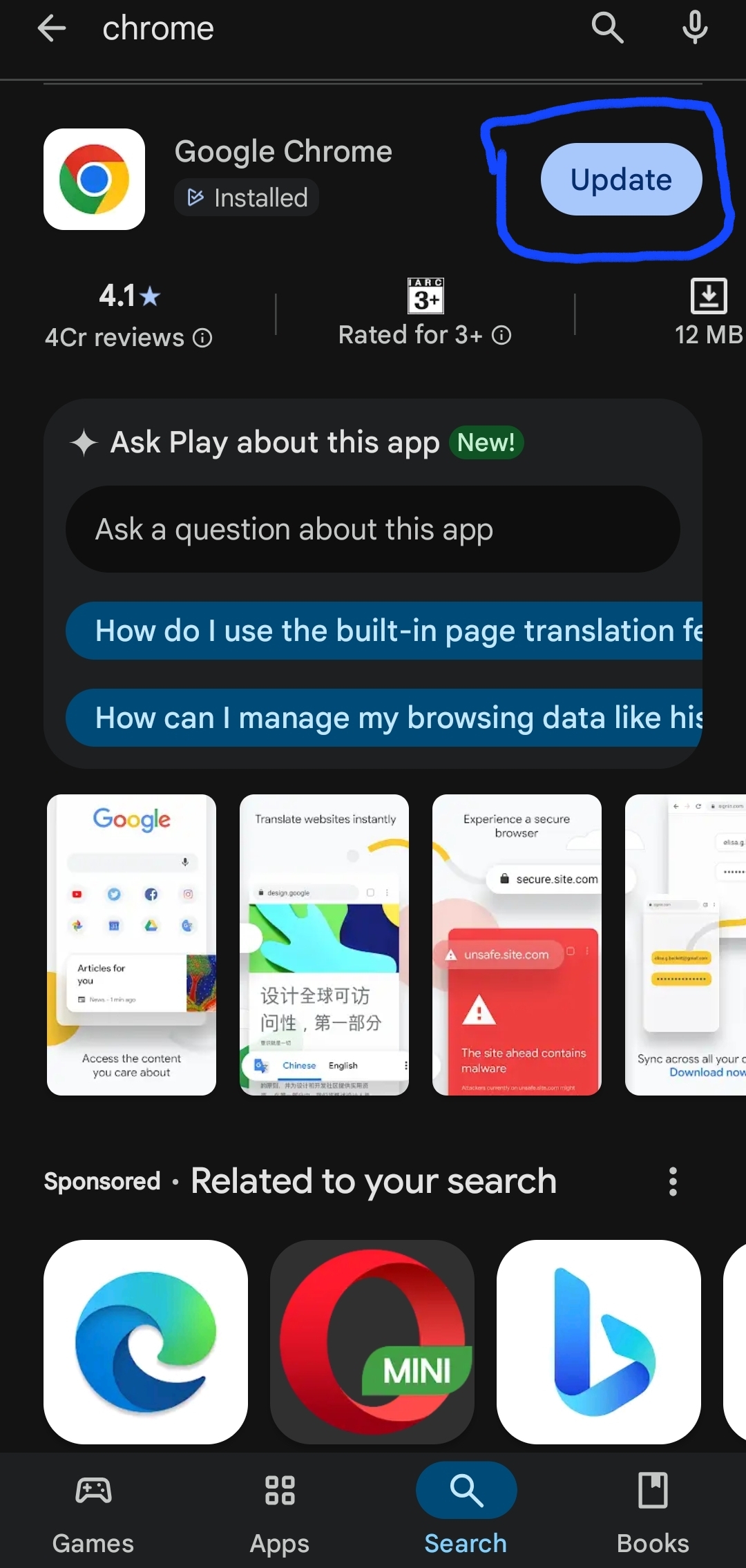
Fix: Update your browser and reload the page. To download the latest version, open Google Play Store > search Chrome > and tap the “Update” option. Note:You can update your iOS browser through the App Store.
Problem 3: Sensor permissions disabled
A spirit level works with the support of an accelerometer and a gyroscope. If you disabled these options, Google Spirit cannot function without them.
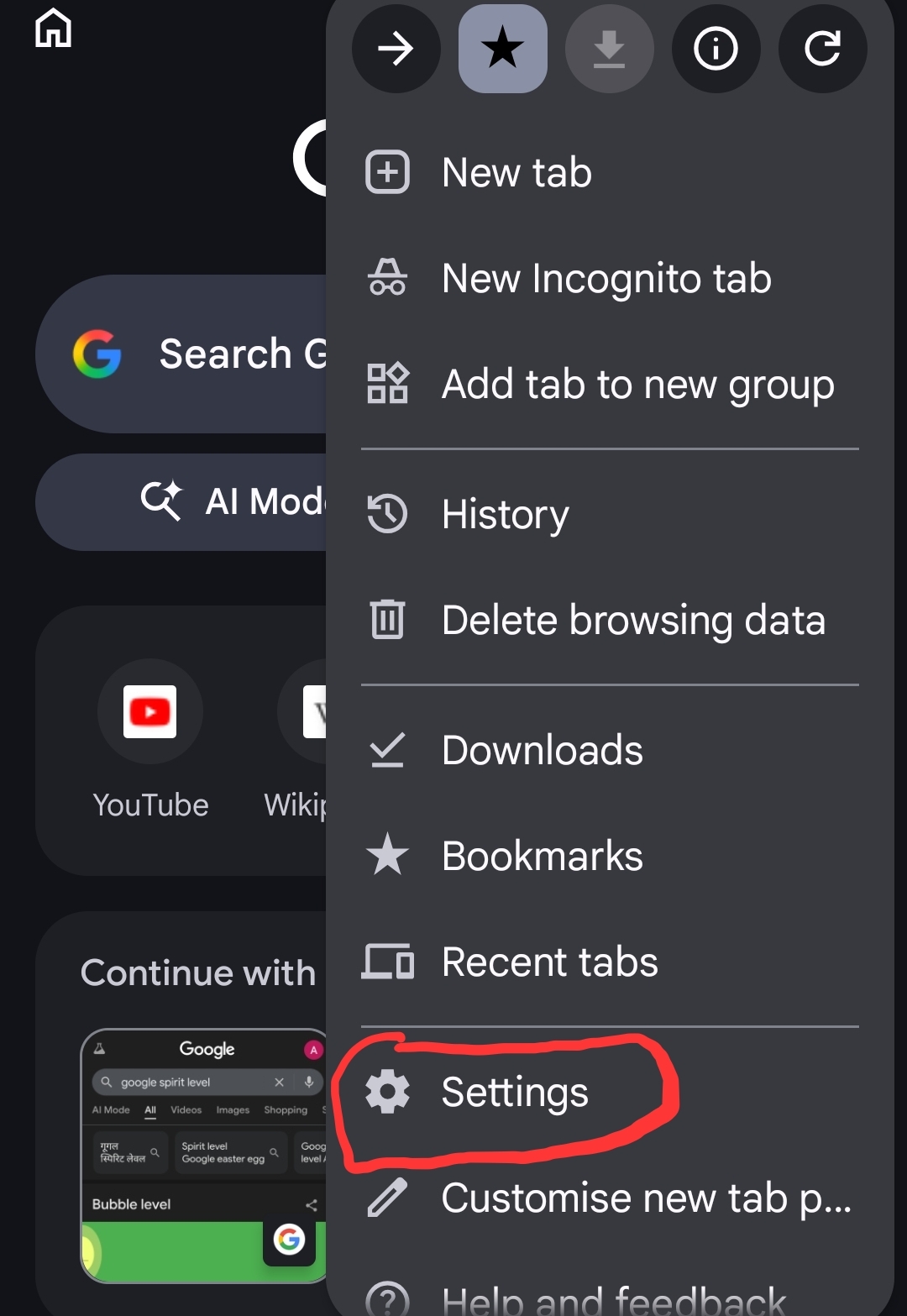
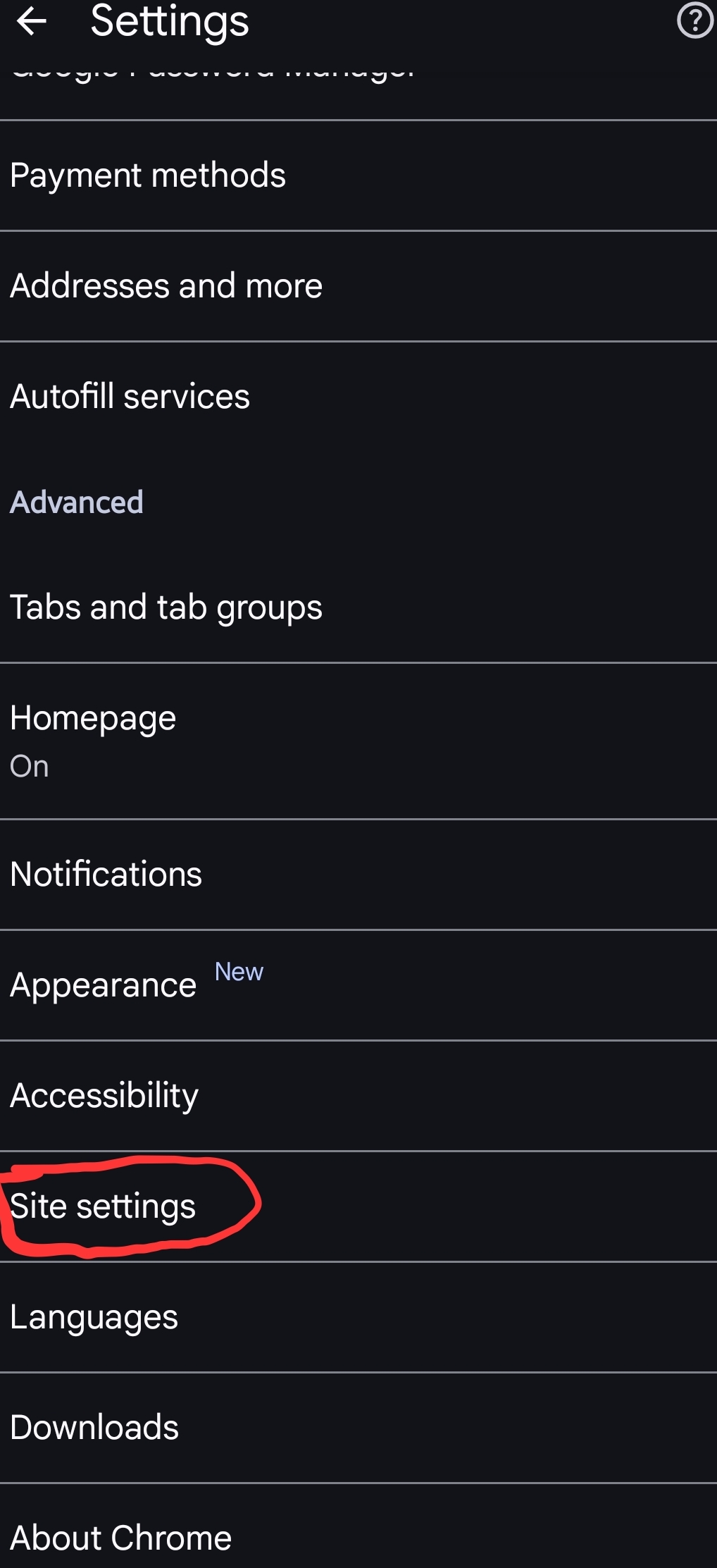
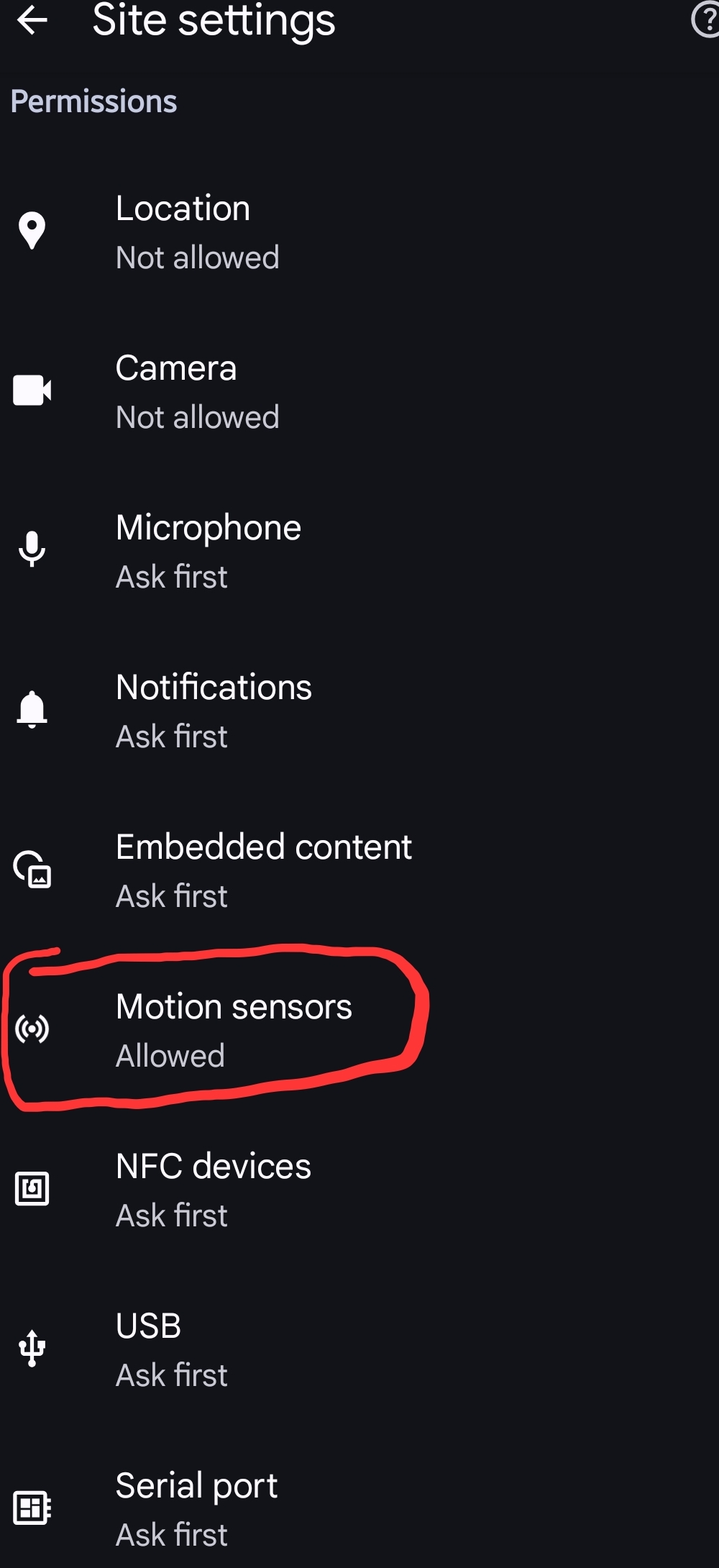
Fix: Ensure the motion sensors are allowed for your browser. For example, on Chrome, visit Chrome > tap three dots and access settings > Tap “Site Settings” > and click “Motion sensors.” Allow sites to use sensors.
Three dots
Settings
Site Settings
Motion Sensors
Problem 4: Desktop mode issues
If you try to access the Spirit level in the desktop mode on your browser, it will not work at all because it loses the sensor access here.
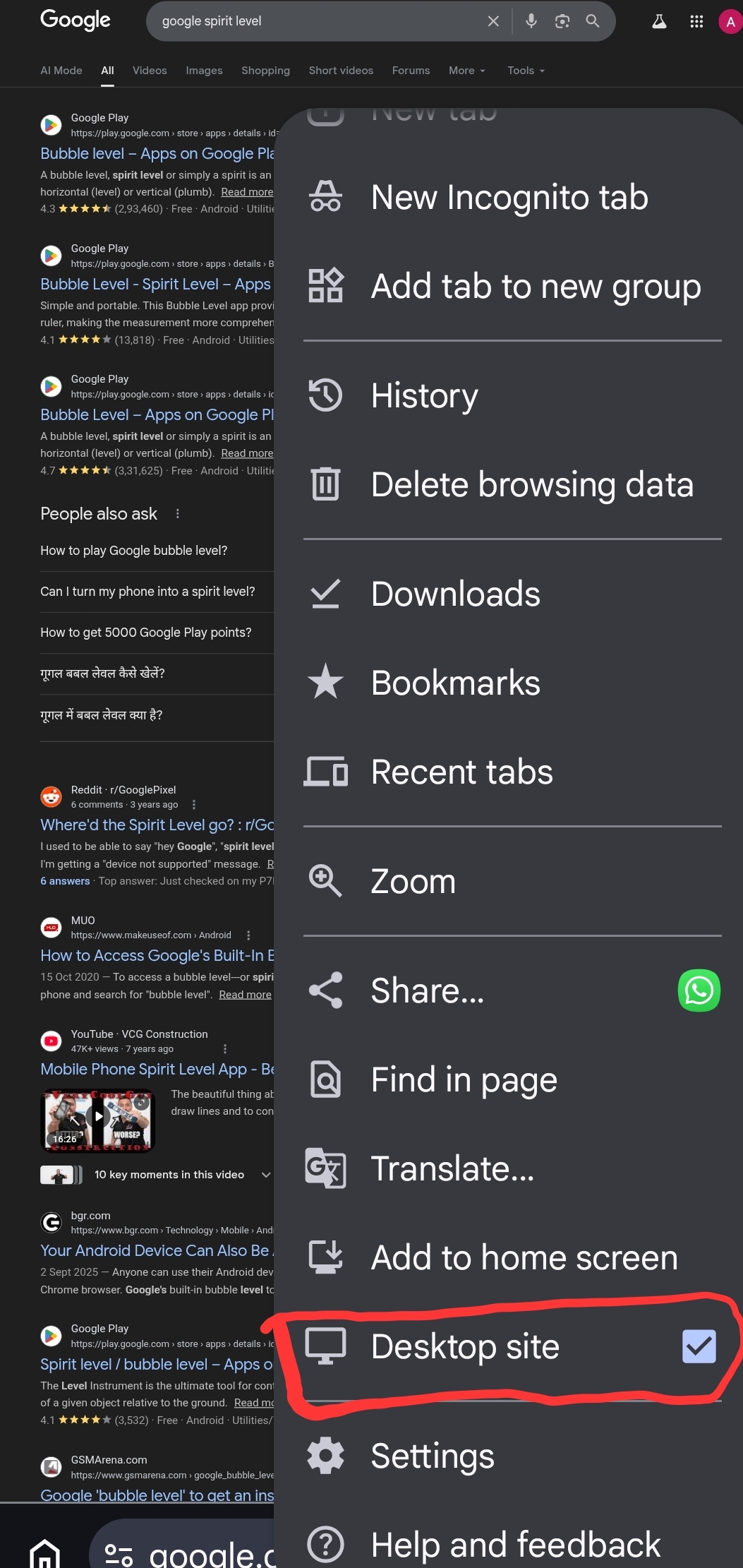
Fix: Simply avoid desktop mode. Use a fresh tab and then type “Google spirit level.” Tap the three-dot icons from the top-right corner and uncheck the “Desktop site” option.
Google Spirit Level vs Real Bubble Level
| Feature | Google Spirit Level | Traditional Level |
| Accuracy | Moderate | High |
| Portability | Very High | Medium |
| Requires Battery | Phone charging is important | Just a physical tool, nothing required. |
| Best For | DIY quick checks, household works | Professional work |
| Accessibility | Free For All | Tools are costly, and only professionals have them. |
| Prior Knowledge to use | Only required a basic understanding of the tool’s interface. | Requires a key skill and experience to use and read the physical vials. |
How Google Spirit Level Actually Works
The Spirit Level works by using your device’s MEMS (Micro-Electro-Mechanical Systems) to detect gravity and calculate the angle of inclination. The primary sensors, like the Gyroscope and Accelerometer, help the tool properly. Here’s how:
- Gyroscope sensor: It measures the angular velocity of the device, helping measure the orientation changes.
- Accelerometer: It detects linear acceleration considering the phone’s X, Y, and Z axes. Using this, it calculates the tilt and angle of the surface.
- Device calibration: Placing the device on a flat reference surface helps measure more accurately. Avoid a phone case while calculating the angle or level for a surface.
- Gravity detection: it’s when the accelerometer senses the gravity vector, which is why you can see the “level surface” or tilted.
Hidden Google Tools Like Spirit Level
Other than the Google Spirit level, there are some essential tool that helps
| Tool | Category | Cost | What it does | How it helps |
| Spirit Level | Measurement and Levelling tool | Free | Find the surface tilt using the phone’s sensor | Helps align pictures and surfaces easily |
| Google Timer | Timing & Rhythm | Free | Countdown timer with alarm | Cooking, workouts, productivity |
| Google Metronome | Timing & Rhythm | Free | Adjustable BPM beats | Music rhythm timing |
| Google Flip a Coin | Random decision maker | Free | Helps in a coin toss for a head or tail probability | Quick decisions, fun choices |
| Google Roll a Dice | Random decision maker | Free | Rolls the dice for 1-6 numbers | Games and randomness |
| Google Calculator | computation | Free | Math calculation | Fast calculation |
| Google Breathing Exercise | Wellness & Computation | Free | 60-second guided animation on inhale & exhale. | Release stress. |
When Should You NOT Use Google Spirit Level?
Although this online measurement tool is useful, you cannot expect it to produce reliable and accurate results when doing professional work. Avoid such tasks where you need a physical level and a skilled technician who can fulfil the job.
Avoid using Google Spirit level for:
- Hanging heavy cabinets
- Structural alignment
- Construction framing
- Engineering measurements
Best Alternatives to Google Spirit Level
If you need an app for levelling the surface, there are alternatives to the Google bubble level. You can find out more and more options. Check the list.
1. Android Level Apps
Some Android apps may offer more accurate measurement about a surface. These tools are easily accessible on the Google Play Store for the android users. The popular tools are:
- Bubble Level by Gamma Play: Inclinometer, slope gauge, angle finder, digital ruler; calibration for precision.
- Bubble Level by HSCN Apps: Visual/sound alerts, adjustable thresholds, camera mode, lock options
- Bubble Level-Spirit Level by 1 Bit: All-in-one: bubble level, straight/2D ruler, protractor; lock, save, calibration
- Bubble level by PixelProse SARL: Independent side calibration (absolute/relative), inclinometer, sound effects, orientation lock
2. Built-in iPhone Level (Measure App)
Measure is a pre-installed app for iPhone. It measures surface in 3D levelling, numerical angle degrees, screen color changes, and haptic feedback through sensors.
Image source: Apple.com
3. Professional Digital Levels
You can buy a traditional surface measurement tool for accuracy and effectiveness. These tools cost you money, but will be a long-term investment if you are about to learn how measurements work and want to include them in your work as well. You can buy them from the e-commerce platforms or directly through search links.
Frequently Asked Questions
Is Google Spirit Level free?
Yes, you can access Google Spirit level for free on the mobile browser. Just enter “Google Bubble Level or Spirit Level, and the tool is in action right away.
Does it work without the internet?
It cannot operate without an internet connection. It’s an online tool and requires a stable connection for accurate measurement.
Why is Google Spirit Level not accurate?
It’s not always accurate due to unstable device positioning, stability issues, and factors such as phone cases and calibration errors.
Can I use it to hang a TV?
Yes, you can perform DIY tasks such as hanging a TV easily with this online measurement tool. For that, open your browser, enter ‘Google Spirit’, position your mobile against the wall, and check the indication.
Why It May Not Work on Desktop
These online measurement tools require motion sensors like an accelerometer and a gyroscope. The desktop lacks this hardware and therefore cannot run this tool.
Does Google Spirit Level Work On Tablets?
It works on Android tablets that have built-in motion sensors. If it lacks, users can try out third-party apps from the Google Play Store.
Does Google Bubble Level Collect Data?
The tool uses your device’s internal sensors, such as the MEMS accelerometer. It requires motion and orientation settings to operate, and doesn’t collect the personal information of the user.
Wrap Up Time!
You don’t need a physical tool every time you want to measure an angle and level to place a photograph on a wall or do a little bit of shifting where small measurements are required. It’s all possible using a free Google Spirit Level tool. It measures for DIY tasks, which anyone can start using as soon as they access it. To find the tool, enter “Bubble Level” in Google.com on your phone’s browser and start measuring by tilting your device. Discover this perfect usage guide to avoid mistakes and have accurate measurements without any help!