Most people who “lose” their YouTube watch history never actually lose it. The data is sitting safely in their Google account — the app just isn’t showing it. Whether your history is completely blank, has stopped updating, or has vanished overnight, we have a solution for all of these. This guide covers every real cause and the fastest fix for each.
Why Is My YouTube Watch History Not Showing?
Before jumping to fixes, it helps to identify which situation applies to you. Use this table to narrow it down:
| Possible Reason | What It Means |
| Watch history is paused | New videos are not being saved to your account |
| Wrong Google account | Your history lives under a different email address |
| Sync issue | History exists, but it is not updating across your devices |
| App or browser problem | YouTube is not loading history correctly – a cache or refresh fix may help |
| Auto-delete enabled | Older history may have been automatically removed after 3 or 18 months |
| History was deleted | Manually deleted videos may no longer be recoverable |
| Temporary YouTube issue | The problem may be server-side, affecting multiple users |
| Different YouTube profile | You are viewing a separate profile or account history |
YouTube Watch History Not Showing?
If your YouTube watch history is not showing, in most cases, watch history is either paused, you are signed into the wrong Google account, or the app just needs a quick refresh. Here is the fastest check you can do right now:
- Visit YouTube.com
- Select your profile
- Select the ‘history’ option
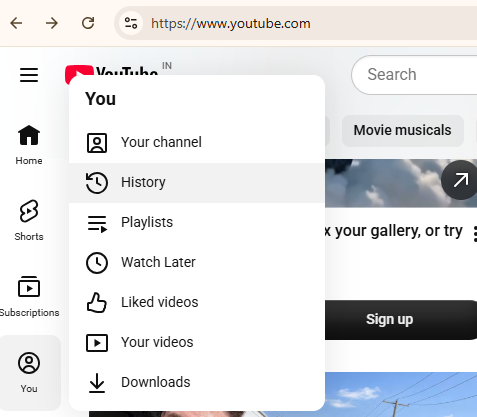
- And select the bin icon
- And tap ‘clear watch history’
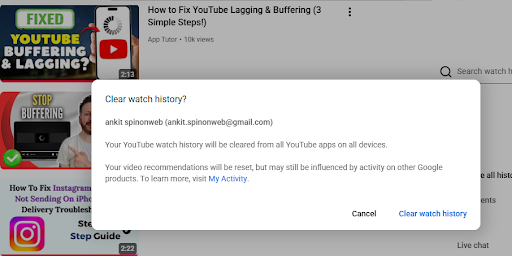
By clearing the history, you will not see any history on your account.
How to Fix YouTube Watch History Not Showing? 10 Ways to Fix It
Work through these fixes in order. Most users solve the problem within the first three steps.
1. Check if YouTube Watch History Is Paused
This is the number-one cause. Google confirms that any video watched while history is turned off will never appear — even after you re-enable it. Here is how to check:
- 1. Open YouTube and tap your profile picture (top right).
- 2. Go to Settings > History & Privacy.
- 3. Look for “Pause watch history.” If it is enabled, tap it to turn history back on.
- 4. Alternatively, go to myaccount.google.com > Data & privacy > YouTube History > Manage history.
2. Make Sure You Are Using the Correct Google Account
This catches a lot of people off guard. If you are signed into multiple Google accounts, YouTube history is siloed per account. A video you watched on your work account will not appear when you are browsing your personal account.
To check: tap your profile picture on YouTube and confirm the email address shown. If it is not the account you normally use, switch accounts from that same menu.
Why are my YouTube videos showing on another account?
If history appears on a different account, the video was simply watched while that account was active. YouTube does not merge history across accounts — each account has its own independent history. The only fix is to make sure you are consistently signed into the right account before watching.
3. Check YouTube History in Google My Activity
The YouTube app sometimes lags or fails to display history correctly — but the underlying data may still exist in your Google Account. This is the underused diagnostic step most troubleshooting guides skip.
Path: myaccount.google.com > Data & privacy > YouTube History > Manage history. Here you will see a full timeline of YouTube activity. If videos appear here but not inside YouTube, you are dealing with an app sync or display issue — not missing data.
How do I see my YouTube watch history if it is not showing in YouTube?
Go directly to myactivity.google.com and filter by YouTube. This bypasses the YouTube app entirely and shows everything Google has recorded under your account. If your history is there, the issue is with how YouTube is displaying it — not whether it was saved.
4. Check Whether Auto-Delete Removed Your Older History
Google offers an Auto-delete setting that automatically removes YouTube history after 3 months, 18 months, or 36 months — or keeps it until you delete it manually. If you or someone with access to your account set this to a shorter window, your older videos may be gone.
To check: Google Account > Data & privacy > YouTube History > Auto-delete. Here is the critical distinction:
- History is not loading: likely fixable with a refresh, sign-out, or cache clear.
- History was auto-deleted: changing the setting will not restore what is already gone. It only prevents future deletion.
5. Run a Quick Diagnostic: Is YouTube Actually Saving New Videos?
Before spending time troubleshooting, run this 60-second test:
- Make sure YouTube History is enabled (Step 1 above).
- Watch any short video — even 10 seconds counts. (you can test by checking out some trending family reels ideas or quick Shorts).
- Wait 30 to 60 seconds.
- Open YouTube > Library > History.
- Check if the new video appears.
What your result means:
- New video appears: YouTube is saving correctly. The issue is with older history — deleted, paused period, or wrong account.
- New video does not appear: There is an active saving problem. Check account, app, or browser.
- Works on one device, not another: Device-specific issue — app update, cache, or sign-in.
- Fails everywhere: Investigate your account-level settings or check for a YouTube-side outage.
6. Sign Out and Sign Back In
A simple sign-out and sign-in forces a full re-sync between your device and Google servers. Open YouTube > tap your profile picture > switch account > sign out. Wait 30 seconds, then sign back in. This resolves stuck history more often than you would expect.
7. Update the YouTube App
An outdated YouTube app can have bugs that affect history loading. On Android, open the Play Store and search YouTube to check for updates. On iPhone, check the App Store. On smart TVs, look in the app store for your TV platform. Keeping the app current prevents a whole category of persistent display bugs.
8. Clear App Cache or Browser Data
Cached data that has become corrupted is a very common cause of YouTube history issues, especially on Android. To clear it: Settings > Apps > YouTube > Storage > Clear Cache. On a browser, clear cookies and cached images for youtube.com and google.com specifically.
9. Disable Browser Extensions
Ad blockers such as uBlock Origin, AdBlock Plus, and privacy tools like Privacy Badger can prevent YouTube from recording watch activity. Disable all extensions, then watch a test video and check whether it appears in history. If it does, re-enable extensions one at a time to find the culprit.
10. Test in Another Browser or Device
If history works in Firefox but not Chrome, or on your phone but not your computer, you have isolated the problem to a specific browser or device. That narrows the fix considerably. A clean browser profile or a fresh app install on the problem device is usually all it takes.
YouTube Watch History Not Updating With New Videos
Watch history is enabled but videos are not being added
If history is on but new videos still are not appearing, work through this checklist:
- Sign out of YouTube completely, then sign back in.
- Update the YouTube app to the latest version.
- On a browser, clear cookies and cached data for youtube.com and google.com.
- Disable browser extensions temporarily — ad blockers and privacy tools can interfere.
- Test in an Incognito window in Chrome or Private window in Firefox or Safari.
- Try a completely different device to isolate whether the problem is account-level or device-level.
What if YouTube history works on one device but not another?
When history shows up on your desktop but not your phone — or the reverse — the data is fine. The specific device or app has a sync or display problem. Common culprits by platform:
- Android: Clear the YouTube app cache via Settings > Apps > YouTube > Storage > Clear Cache.
- iPhone: Delete and reinstall the YouTube app.
- Browser: Clear cookies, disable extensions, or switch browsers.
- TV or Console: Sign out and back in; confirm the same Google account is active.
YouTube Watch History Not Showing on Android
Android users have a couple of extra options that are not available on other platforms.
1. Check YouTube History settings on Android
Open YouTube > tap profile picture > Settings > History & Privacy. Confirm “Pause watch history” is not enabled. If it is, tap to turn it back on.
2. Clear YouTube app cache
Go to Settings > Apps > YouTube > Storage > Clear Cache. This does not delete your account data — it forces the app to reload fresh data from Google servers. A corrupted cache is one of the most common causes of missing history on Android.
3. Sign out and sign back in
Tap your profile picture > Switch account > choose your account > Sign out. Wait 30 seconds, then sign back in. This forces a full account sync and often resolves stuck or missing history.
4. Test YouTube in a mobile browser
Open Chrome on your Android device and visit youtube.com. If your history appears in the browser but not the app, the issue is isolated to the YouTube app. Clear the cache or update the app to fix it.
YouTube Watch History Not Showing on iPhone
1. Check YouTube History settings and Google account
On iPhone, tap your profile picture in YouTube and confirm the email address. Then go to Settings > History & Privacy and make sure watch history is active. Many iPhone users inadvertently tap “Pause watch history” without realizing it.
2. Update or reinstall the YouTube app
Open the App Store, search YouTube, and tap Update if available. If history is still broken after updating, delete and reinstall the app. This resolves most persistent display bugs on iOS without affecting your account data.
3. Check YouTube History through Google My Activity
Open Safari on iPhone and visit myactivity.google.com. Filter by YouTube. If your history appears here, the data is safe — the app just is not displaying it. Sign out and back in to force a sync.
YouTube Watch History Not Showing on PC or Chrome
1. Disable extensions and clear cache
Ad blockers and privacy extensions can prevent YouTube from logging watch activity. Disable them temporarily and watch a test video. To clear YouTube-specific cache in Chrome: Settings > Privacy and security > Delete browsing data > check Cookies and Cached images > filter by youtube.com.
2. Test in Incognito mode
Press Ctrl+Shift+N in Chrome to open Incognito. Sign into YouTube and check your history. Note: videos watched in Incognito are not saved. This test only confirms whether extensions are causing the problem in regular mode — not a long-term fix.
3. Try another browser
Open Firefox, Edge, or Safari and log into YouTube. If history shows normally there, the issue is Chrome-specific. A full Chrome profile reset or extension audit usually resolves it.
YouTube Watch History Not Showing on TV
On Smart TVs, Android TV, Google TV, Apple TV, and gaming consoles (PlayStation, Xbox), YouTube history follows the same rules — it is tied to the Google account you are signed into.
Google provides separate controls for pausing or clearing watch history specifically on TVs and gaming consoles, which is easy to overlook. Check via: Google Account > Data & privacy > YouTube History > Manage history > filter by device.
If history is not showing on your TV, go to the YouTube app settings > Sign out > sign back in with the correct Google account. Verify that history is enabled on your phone or computer, since TV interfaces make settings harder to navigate.
YouTube Watch History Disappeared – Can I Get It Back?
It depends entirely on why it disappeared. Here is an honest breakdown:
If history was only hidden or not loading
Potentially fixable. Work through the steps above — sign-out, cache clear, account switch. The data may still be in your Google Account even if YouTube is not showing it.
If history was paused
Videos watched during the paused period were not recorded. They are not hidden — they were never saved. Turning history back on will not bring them back.
If history was manually deleted
Deleted history is removed from Google servers. There is no recycle bin or undo function. Once you delete history — individually or all at once — it cannot be recovered.
If auto-delete removed it
Changing the auto-delete setting to “Keep until I delete” will not restore history that was already deleted. It only prevents future automatic removal. Check myactivity.google.com to confirm what is actually still there.
YouTube History Is Showing Some Videos but Not Others
This is one of the more confusing scenarios, and most guides do not address it specifically. If your history is partial — some videos appear, others do not — these are the likely reasons:
- A different Google account was active when some videos were watched.
- History was paused during certain viewing sessions.
- Auto-delete removed videos beyond a certain age.
- Individual videos were manually deleted from history.
- Some videos were watched while embedded on other websites, not directly on YouTube.
- Sync delays — some devices have not pushed their history to the server yet.
- Videos watched in Incognito or Private browsing mode are never saved.
Unique insight worth knowing: watching YouTube videos embedded on third-party websites — Reddit, news sites, blogs — does not always trigger watch history recording, even with history fully enabled. If you watched content through an embed, it simply may not appear in your history at all.
What If YouTube History Is Completely Empty?
Work through this diagnostic flow in order:
- Are you signed in to YouTube? History is only saved for signed-in users.
- Is YouTube History turned on? Check Settings > History & Privacy.
- Is this the correct Google account? Confirm the email address.
- Does Google My Activity show any YouTube activity? Visit myactivity.google.com.
- Does a newly watched test video appear in history?
- Does history appear on a different device or browser?
If the answer to all of these is no, and a test video does not appear anywhere, it is worth contacting Google Support directly — there may be an account-level issue that only they can investigate.
YouTube Watch History Not Showing After Turning History Back On
This is a very common source of confusion. Turning YouTube history back on does three things: it starts recording new videos from that moment forward, it makes previously saved history visible again, and it stops any active pause. It does NOT recover videos watched while history was off — those were never saved.
So if you turn history back on and your library looks empty or incomplete, it is because there is nothing recorded from the paused period. Give it time — watch a few videos, and they will start appearing normally.
Is YouTube Watch History Down Right Now?
Occasionally, YouTube history stops working for everyone, not just you. Before spending an hour troubleshooting your own device, rule out a platform-wide issue:
- Test on a second device — phone plus desktop. If both are broken, it is likely not your device.
- Open Google My Activity. If that also fails to load, there is a broader account or server issue.
- Search on Twitter or X for “YouTube history not working” to see recent user reports.
- Check downdetector.com for YouTube status reports.
- Check the Google Workspace Status Dashboard at workspace.google.com/status.
If it is a YouTube-side outage, the only fix is to wait. These typically resolve within a few hours. Do not delete or reset anything while waiting — you may make the situation worse.
A Quick Fix Checklist for YouTube Watch History
Run through this in order. Most problems are solved by step 4.
- Confirm you are signed into the correct Google account
- Verify YouTube History is turned on via Settings > History & Privacy
- Check Google My Activity to see if data exists at myactivity.google.com
- Watch a test video and wait 60 seconds — does it appear in history?
- Update the YouTube app to the latest version
- Restart the app or device
- Clear app cache (Android) or browser data (PC)
- Try another browser or device
- Review your Auto-delete setting in Google Account
- Determine whether history was deleted or simply never recorded
Frequently Asked Questions
1. Why is my YouTube watch history not showing?
The most common reasons are that watch history is paused, you are signed into a different Google account, or there is a temporary app or browser issue. Start by confirming history is enabled in your Google Account settings, then verify the account you are using matches the one that was active when you watched those videos.
2. Why is my YouTube history not updating?
If history is on but not updating, try signing out and back in, clearing the app cache, or disabling browser extensions. Ad blockers and privacy tools frequently prevent YouTube from syncing your watch activity to the server in real time. A test video after disabling extensions usually confirms whether that is the cause.
3. Why did my YouTube watch history disappear?
History can disappear due to being manually deleted, auto-delete settings removing older entries, being logged into the wrong account, or a temporary sync failure. Check myactivity.google.com first — if history appears there, you have a display issue, not a data loss issue.
4. How do I get my YouTube watch history back?
If history was deleted, it cannot be restored. If it is a display issue, turning history on and signing out and back in usually brings it back. For sync issues, try Google My Activity directly — your data may be there even if the YouTube app is not showing it.
5. How do I see my old YouTube watch history?
Visit myactivity.google.com, sign in, and filter by YouTube. This shows your full recorded history across all devices. You can search by date or keyword here, which is more powerful than the in-app history view. Google saves this data as long as auto-delete has not removed it.
6. Why are not videos I watched showing in history?
Videos will not be saved if history was paused, you were signed out, you were in Incognito mode, or the video was watched via an embedded player on another website. Check all four scenarios before assuming there is a technical problem with your account.
7. Why is YouTube history not showing on my phone?
On both Android and iPhone, a corrupted app cache is a very common culprit. Clear the cache on Android or reinstall the app on iPhone, then sign back in. Also confirm the account on your phone matches the account you use on other devices — history is account-specific.
8. Why is YouTube history not showing on my PC?
Browser extensions — especially ad blockers — frequently prevent YouTube from recording watch activity. Disable extensions and test in Incognito mode. Also clear cookies for youtube.com and google.com, then sign back in. If history works in another browser, the issue is browser-specific.
9. Does YouTube save videos when watch history is paused?
No. Google explicitly confirms that videos watched while history is paused are not saved and will not appear in your history — ever. Resuming history only saves videos going forward from that point. There is no way to retroactively record activity from a paused period.
10. Can I recover deleted YouTube watch history?
No. Once YouTube history is deleted — manually or via auto-delete — it is permanently removed from Google servers. There is no recovery option, no recycle bin, and no undo function. The only action you can take is to disable auto-delete going forward to prevent future loss.
Does YouTube automatically delete watch history?
Only if you have enabled the Auto-delete feature. You can check this at Google Account > Data & privacy > YouTube History > Auto-delete. Options are 3 months, 18 months, 36 months, or never. By default, history is kept indefinitely unless you have changed this setting.
Final Say
In the vast majority of cases, YouTube watch history is not showing because history was paused, you are on the wrong Google account, or a cache or app issue is blocking it from loading. None of these require technical expertise to fix, you just need this guide to fix all of these.
Always check Google My Activity before assuming your history is gone. The data often still exists. This single check can save you 30 minutes of unnecessary troubleshooting.
If you have confirmed history is on, you are on the right account, and a newly watched test video still does not appear anywhere, that is the signal to look for:
- An app-level bug
- A browser extension conflict
- A temporary YouTube outage
Work through the checklist above in order, and you will find the fix.