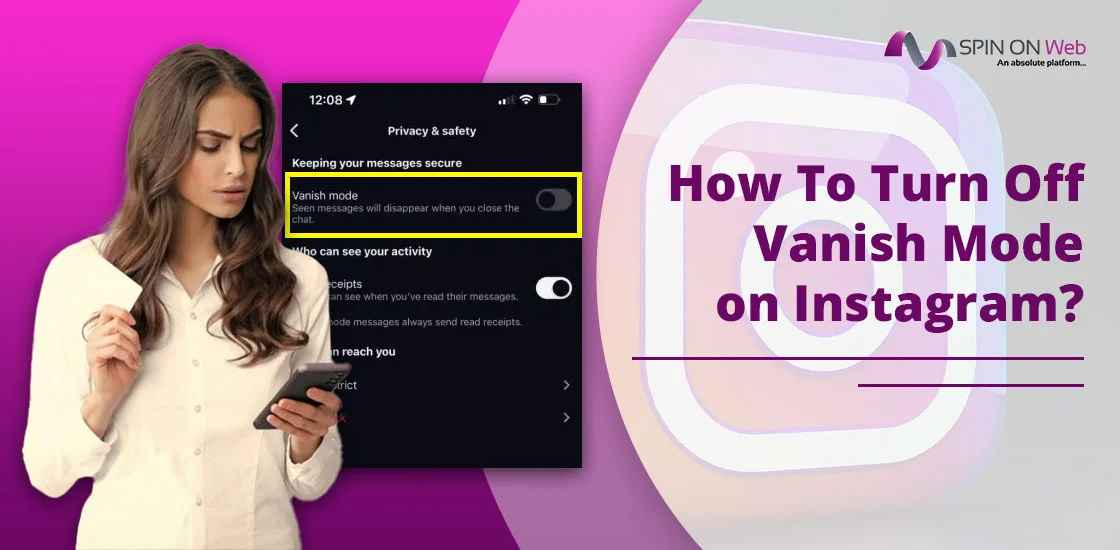
Vanish Mode is Instagram’s feature that deletes all the messages when the person has left the chat and both parties have seen it. It can be turned on by your friend or an accidental upward swipe by you.
This Instagram feature lets users manage chat privacy very easily. If you want a standard chat conversation that secures its history, you can easily disable it. This guide will explain to you the detailed steps for all devices: Android and iOS.
Quick Notes!
- While using this Vanish Mode, all chats will disappear after closing the chat.
- You will be notified when someone messages you in vanish mode.
- Not all professional accounts will receive chat by using this feature.
- Accounts that were not connected before will not be able to drop a message request by enabling this feature.
- Users can’t copy, forward, or save when they are using the Instagram feature.
- This feature is not designed for group chats, only for individuals.
- You can also capture a screen recording or screenshot of the chat while in vanish mode. Plus, Instagram notifies you when your friend has taken it.
What Is Vanish Mode on Instagram?
While Vanish Mode has been a popular feature since 2020, its 2026 updates have made the UI much smoother for privacy, like sending notifications. This feature of Instagram is designed in a privacy-focused mode. It means that users can easily have a conversation on a temporary basis, which can be photos, text messages, links, or videos in direct chats. These types of chats will automatically go away when the person has vwed them or has left the chat. With the help of this feature, you will effortlessly get a safeier and cleaner way to share sensitive or confidential information with another person.
Important Point to be Considered!
As of 2026, Instagram has a strict policy for minors. If you are younger than 18 years of age and would like to use Vanish Mode, it may not be accessible, or you may be required to submit a Parental Approval Request. Additionally, this feature is not currently available in Japan, the UK, and most European Union (EU) countries because of regional restrictions.
How To Turn Off Vanish Mode on Instagram? – (Android, iOS & Web)
Follow the walkaround that is listed below.
- Go to the Messages section.
Or, if you are using an iPad, move towards the left side to tap on Messages.
- Choose the person you are using Vanish Mode with.
- Tap on it.
- Swipe upward to disable this feature.
For Disappearing Messages, you will get four options by tapping on the Change:
- Off
- Once they’ve seen.
- 24 hours
- 7 days.
- Simply tap on the Off option.
That’s it! You have successfully converted your temporary conversation into a standard format.
Note: This feature is not available on a web-based desktop version. Moreover, if you have a large screen, like on tablets or foldable devices, you are swiping upward from the very bottom. On the other hand, if you have a mobile device, you need to swipe slowly and steadily instead of swiping up fast.
Can You Turn Off Vanish Mode for One Person Only?
YES! You can easily disable this Instagram feature for only one person, not applicable to group chats, at a time. Besides this, other people will have a standard chat conversation that saves its history as well. Apart from that, you have full access to whom you want to store chat history for and delete their conversation temporarily. In addition, one chat setting for whom you have enabled this feature won’t impact your other DMs.
What to Expect?
- When you disable Vanish Mode, it also turns off on your friend’s side.
- As of 2026, there is no latest update that there will be a direct option to turn on this Vanish Mode for everyone at a single time.
Why Do People Use Vanish Mode on Instagram?
There are some common reasons why users are doing this most frequently on Instagram. These are listed below:
- Improved Privacy & Security: While having a conversation with your friend, data won’t be saved. So, users can easily share sensitive topics and information with them. Also, it reduces data leaks.
- Avoiding Chat Cluttering: By using this feature, it automatically deletes the data, and it prevents your chat history from filling up with unnecessary messages.
- Temporary Content Sharing: You can easily share videos, photos, GIFs, or links on a temporary basis. Plus, it won’t save for the future.
- Spreading Awareness: When your friend tries to take a screenshot, whether it is for videos or photos, Instagram will notify you.
- Safety Measures: This feature is for only one person whom you have already connected with. Moreover, it prevents unwanted messages from unknown people.
Warning ⚠️! Be aware of Ghost Notifications! It means that your message will be visible on your lock screen even if the conversation has gone away.
Vanish Mode Not Turning Off? Try These Fixes
First, I will provide you with reasons why you can’t turn off. After that, I will discuss fixes.
Issue 1: You Have Accidental Activation of the Swipe Up Feature.
Fix: If you are swiping up too quickly, Instagram will fail to turn this feature off. So, you need to perform a deliberate swipe up from the bottom side till you can see the circle completely.
Issue 2: There are Some Software App Glitches.
Fix: If you are using outdated or corrupted cache files, Instagram may face this problem. In that case, you need to clear all the files so that you can easily disable Vanish Mode, especially on Android devices. However, there is no direct option to delete its cache for iOS devices.
Issue 3: There are Some Other People’s Activities.
Fix: If your friend keeps sending you messages in Vanish Mode, your screen may get stuck. To get rid of this issue, you can simply deactivate it manually. If it is not possible from your side, consider the following steps:
- Tap on the friend’s username.
- After that, navigate to Privacy and Safety.
- Then, toggle off the Read Receipt option. It will automatically delete messages and always send read receipts.
Otherwise, you can try to delete Instagram and then reinstall it.
What Happens After You Turn Off Vanish Mode?
These are the following things that you will see after turning off Instagram’s Vanish Mode.
- Your temporary conversation will be converted into a standard chat with your chosen friend.
- When you and your friend leave the chat, all your older messages that are shared while in Vanish Mode will also be deleted.
- After disabling Vanish Mode, all conversations that both individuals had will be saved in the chat history.
- You will get a notification that another person has disabled Vanish Mode.
Difference Between Vanish Mode vs Disappearing Messages
Here, you will see the difference between the vanish mode and disappearing messages in a tabular format.
| Basis | Vanish Mode | Disappearing Messages |
| Platform Availability | Instagram and Messenger (Meta) | WhatsApp, Messenger, and Instagram. |
| Activation | You need to swipe up in one-on-one communication. Otherwise, you can also set a timer for up to 7 days. | It is enabled in the chat settings. You just need to choose the timer, such as 24 hours, 7 days, or 90 days, especially on WhatsApp. |
| Message Lifespan | While in vanish mode, messages will go away instantly when any of the Instagram users leave the chat. | Messages will remain the same until the set timer ends. |
| Use Case | It can appear randomly within a private chat. | Here, you have privacy control, and it reduces chat history hassle. |
| Control Types Supported | Photos, videos, text messages, stickers, and GIFs. | Voice notes, text, photos, and videos. |
| Screenshot Behavior | On Instagram, notifications will be received by the other user when they are in Vanish Mode. | On WhatsApp, there are no screenshot alerts. |
| Conversation Record | There will be no records stored when you disable Vanish mode. | Messages will be there till the timer goes away. Besides this, metadata will stay as it is. |
| Security and Privacy | It is specially designed for temporary secrecy. In addition, it is useful for sensitive information, but it is for short-lived exchanges. | Disappearing messages are designed for ongoing privacy management. In fact, it reduces long-term impact. |
Key Notes!
- Don’t confuse with the Unsend message and Vanish Mode. Both works different from each other. “Unsend message” means you don’t want to send the particular chat, but anyway, the text has been sent. You remove it by yourself. On the other hand, Vanish Mode is when both individuals have seen the message and left the chat. Then, the conversation will automatically be removed.
- You can use vanish mode when you need to have instant privacy. On the other hand, disappearing messages are recommended if you are looking for scheduled privacy.
- On Instagram, when you are in vanish mode, you can’t forward the message to the other individual. However, this feature is specifically designed for ephemerality.
- You can take a screenshot when you are in vanish mode, but keep one thing in your mind that the other person will get a notification regarding it.
- While having a professional conversation in a disappearing messages feature that is enabled by you may lead to conflicts in record-keeping requirements.
- Vanish mode is only accessible while having a one-on-one conversation. On the other hand, the disappearing messages feature is available in personal as well as group chats.
Is Vanish Mode Safe to Use?
YES! Vanish Mode of Instagram is safe to use, whether you are doing it for casual, ephemeral, or private messages with a friend who is trustworthy. It means that there is an automatic deletion on a temporary basis. Along with that, you can also report the message even after turning off Vanish Mode. But make sure that this feature is not suitable for sharing high-security information.
Note! Instagram will recover all the end-to-end encrypted messages that you have sent in Vanish Mode up to 14 days, as the data is stored on its server. As a result, it makes sure that there is safety compliance. Moreover, if users are harassed, they can easily report messages that violate Instagram Community Guidelines.
Benefits Of Vanish Mode?
Let’s see some benefits of using Vanish Mode.
- You can easily share your thoughts or typos in an unfiltered or unauthentic manner because your chat won’t be archived for years.
- By using Vanish Mode, you can prevent heavy data from being permanently cached in your app data.
- While sharing sensitive data with the other person, you must use Vanish Mode for security purposes. It means that if someone snoops into your DMs, they will get nothing about that.
Conclusion
You can easily turn off Vanish Mode on Instagram by just swiping up the chat until you see the whole circle. Moreover, it is highly recommended that you should use this feature with those you have full trust in. Apart from that, when your friend starts screen recording or captures a screenshot of data, whatever you’ve shared with them in vanish mode, you will get a notification regarding it. Last but not least, this Instagram feature is safe and can be applicable for one-on-one chats, not for group chats.
Answers to Common Questions
Let me clarify your doubts regarding how you can turn off vanish mode on Instagram easily.
Q1. Can I permanently disable Vanish Mode?
Ans. NO! There is no permanent option to disable the Vanish mode feature. However, you can only turn it off from the specific chat.
Q2. Does Vanish Mode delete old messages?
Ans. NO! Vanish mode does not impact old messages, and they remain the same. But if you send any chat during that, it will disappear.
Q3. Can the other person enable it again?
Ans. YES! The other Instagram users can easily turn on Vanish Mode whenever they want. They just need to swipe up their chat, and the rest will be done.
Q4. Is Vanish Mode available in all countries?
Ans. Unfortunately, No! Instagram’s vanish mode is not readily accessible in all countries, such as the UK, Japan, and most European Union (EU) countries.
Q5. Does Vanish Mode work in group chats?
Ans. NO! You are not allowed to enable Vanish mode while having a conversation in your group chats. As a result, it is only available in one-on-one conversations.
Q6. When Vanish Mode is turned on, does the other person also receive a notification?
Ans. YES! You will get a notification that someone has enabled the Vanish Mode. As a result, your screen will become black, and you will see the message that says, You entered Vanish Mode.