If you want to declutter your Snapchat inbox and get rid of the built-in chatbot, then remove it from your visible feed in just a few steps.
TL;DR:
- Snapchat My AI can be removed from the chat feed, but it is not always fully deleted from the account.
- You can unpin it and clear it from the visible chat list to make your Snapchat look cleaner.
- Clearing the chat is not the same as deleting the data, so reviewing privacy settings still matters.
- Your My AI chats may still be stored unless you delete them from Snapchat settings.
- If privacy is your main concern, check Privacy Controls and Account Actions too.
- My AI may appear again after app updates, so you may need to manage it again later.
In the booming AI era, if you are fed up with AI chatbots integrated into your chat feed, like Snapchat’s My AI feature, then you are not alone.
Snapchat aims to integrate My AI into the chat feed so users can get quick answers easily, receive real-time assistance, and use creative tools directly within their conversations.
I personally used this tool as an everyday assistant, where I took help from it for planning my trips, suggestions for gifts, answering questions, and finding recommended sports and many more.
Now the question arises: if such facilities are given by this tool within the chat feed, then why do people want to turn off My AI on Snapchat?
In this article, I will demonstrate exactly that and give you the reasons and their solutions.
Why people want to remove AI from Snapchat chat feed
Technology sometimes plays a vital role in making processes easy; at the same time, it also creates distractions and takes up space that users do not want.
The same is happening with Snapchat users.
If I tell you personally what I think about whether it should be removed or not, then I have a mixed opinion about it.
Here’s my personal POV on why people search for how to delete My AI on Snapchat.
AI chatbots like Snapchat’s My AI, or other popular ones like ChatGPT, are designed to improve with user interactions. Because of that, many users feel uncomfortable sharing personal information or their conversation style with such tools.
This is directly a privacy concern when using AI in a personal space like Snapchat.
Because during discussions in chats, users mostly talk about personal stuff, and if they ask anything to Snapchat’s My AI feature, then there is always a chance that personal information may be involved.
Hence, it is purely a privacy concern for users who use such AI bots during their personal chats.
However, as there are two sides to a coin, there can definitely be multiple benefits of using such AI bots, which we discussed in the next section.
What benefits I got using Snapchat My AI
I used Snapchat’s My AI feature multiple times for various purposes, and it worked incredibly well in many cases.
I used this feature to plan my California trip and asked, “Suggest a 5-day travel plan for California with family”; it suggested things appropriately, and when I asked follow-up questions, it responded well according to my convenience, like dividing the 5-day itinerary, suggesting popular sites we should visit, and so on.
And see the screenshots of how precisely it answered me.
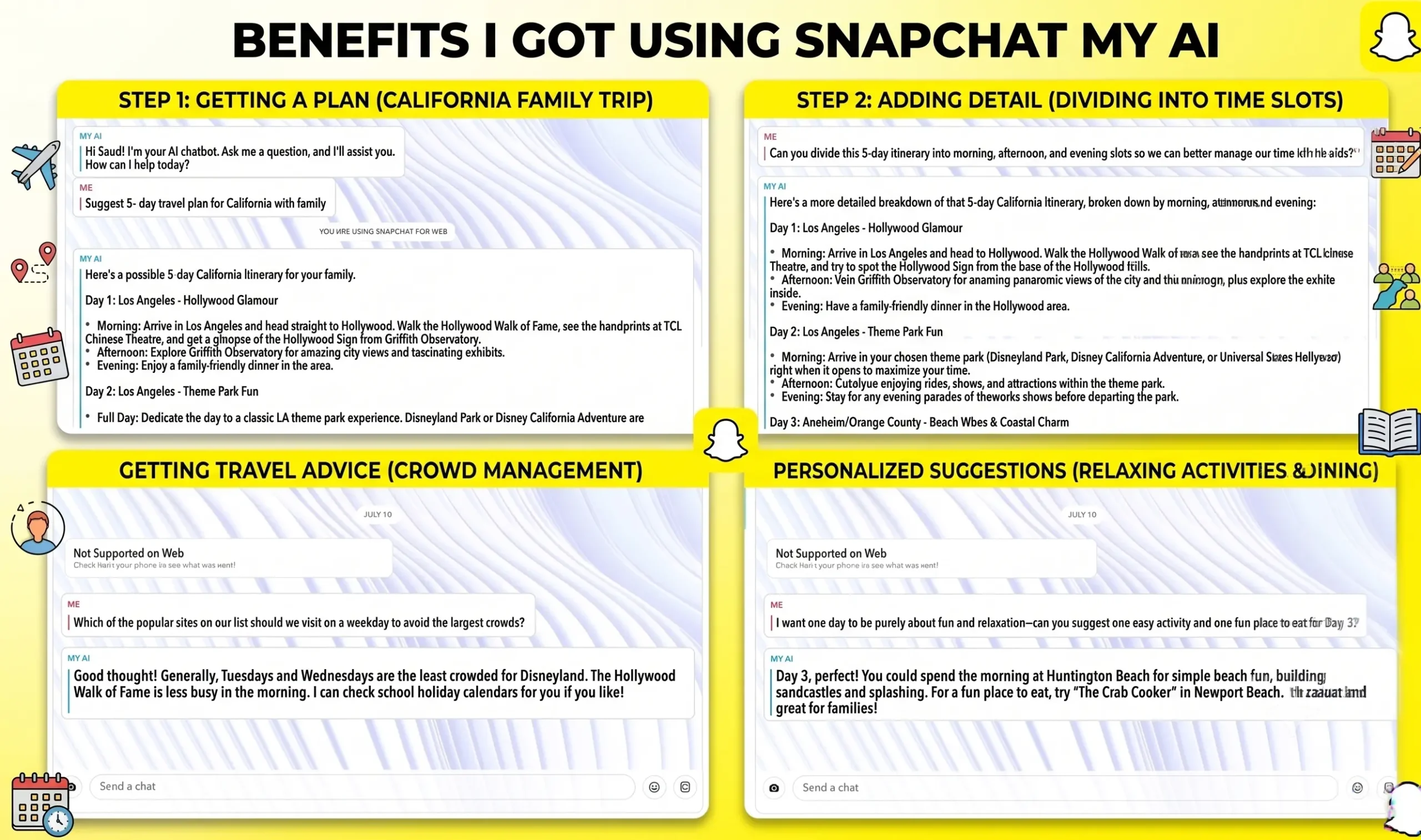
Also, I got a lot of suggested answers related to new recipe ideas, lifestyle and advice like hair care, fitness tips, guitar chords, and smoothie recommendations from this My AI bot, and many replies were mostly correct.
Hence, I got the benefit in one place without switching apps.
But as mentioned above, as I shared personal information about my trip and other details, that can also create a privacy concern for users.
We will later read in this blog about privacy concerns people often forget to read.
Can you permanently remove My AI?
In practice, “permanently” can have different meanings for different users.
For some people, they never want to see this feature at the top of the screen. For others, they want no trace of the chatbot on the account.
I use the free version of Snapchat, and when I tried to remove the My AI feature permanently, I could not fully delete it from my account.
On the other hand, Snapchat’s help center explained that My AI can be unpinned or removed from the chat feed through the chat settings menu. However, clearing the chats does not mean it will be removed permanently.
Note: Removing My AI from chat feeds and deleting it entirely are two different things. Even if you manage to remove the My AI feature from the chat feed, it remains visible on the chat shortcut bar.
Some sources claimed that deleting My AI permanently is possible for Snapchat+ subscription holders.
So the honest answer is: you can hide it effectively, but complete deletion is not always possible; still, you can try with the premium version.
How to remove My AI from the chat feed
The removal process is straightforward. However, the exact label can vary slightly depending on your app or device updates.
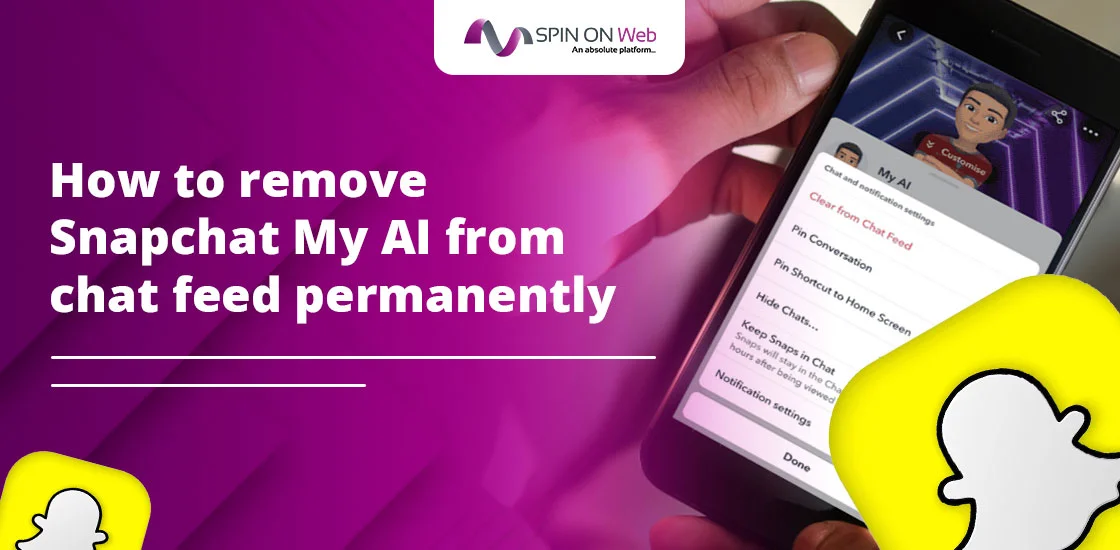
I basically hide Snapchat My AI from the chat feed by following these steps below:
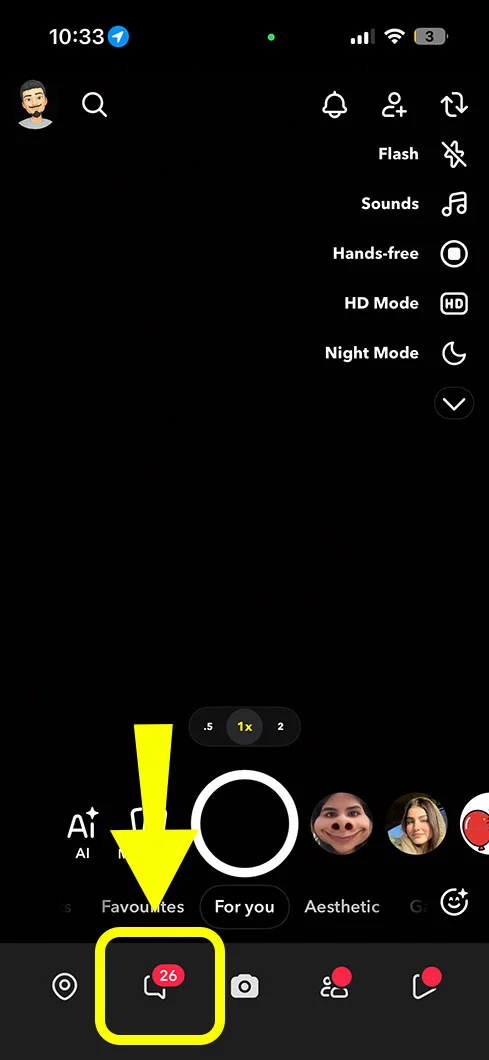
- Open Snapchat and go to the Chat screen.
2. Find My AI in the chat list.
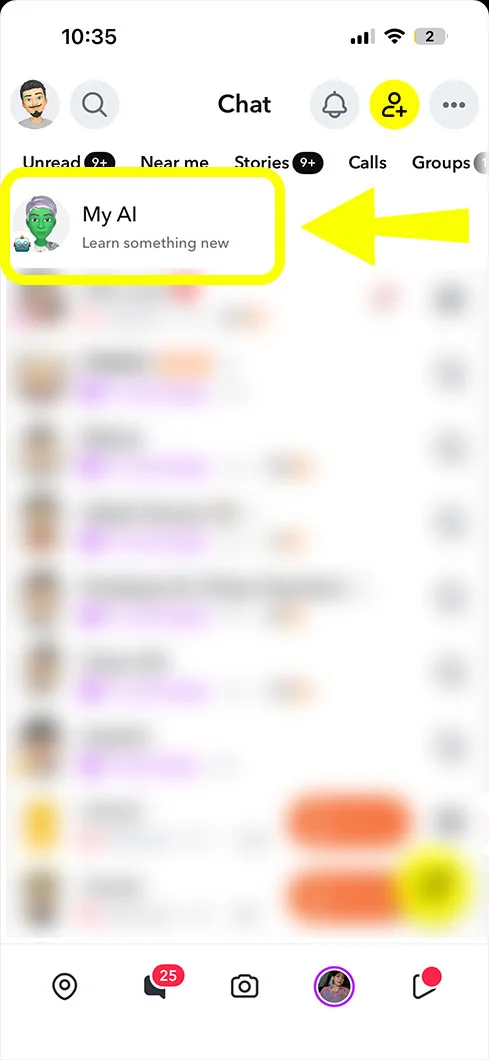
3. Press and hold on My AI.
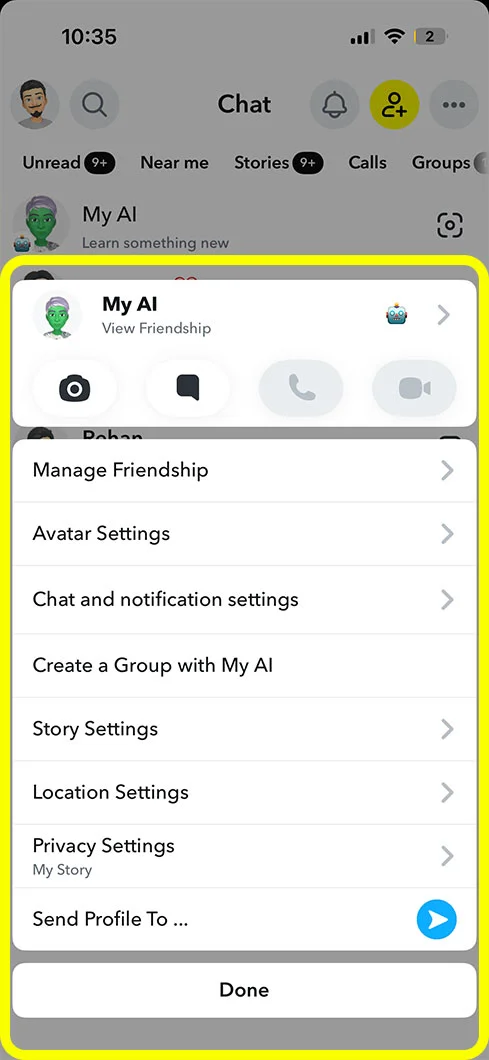
4. Tap Chat and Notification Settings.
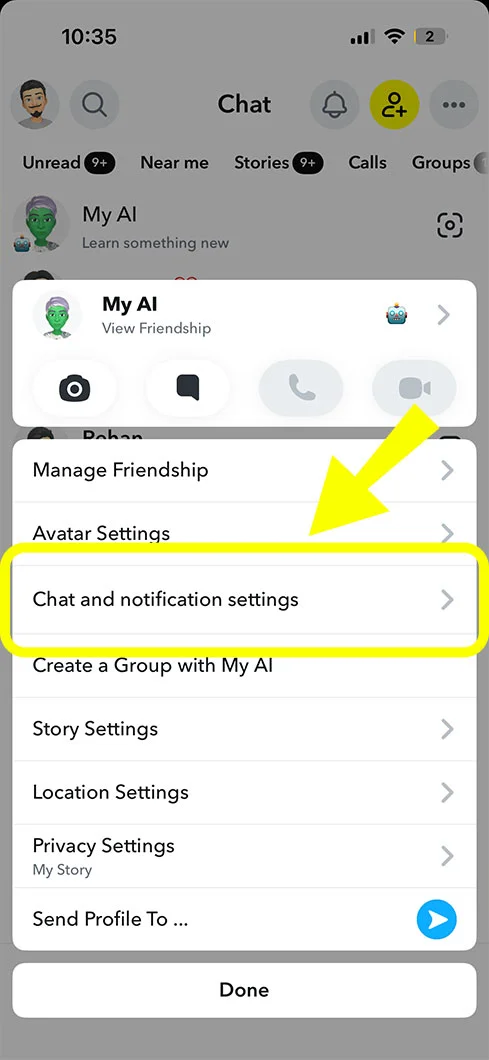
5. Choose Unpin Conversation if it is stuck at the top.
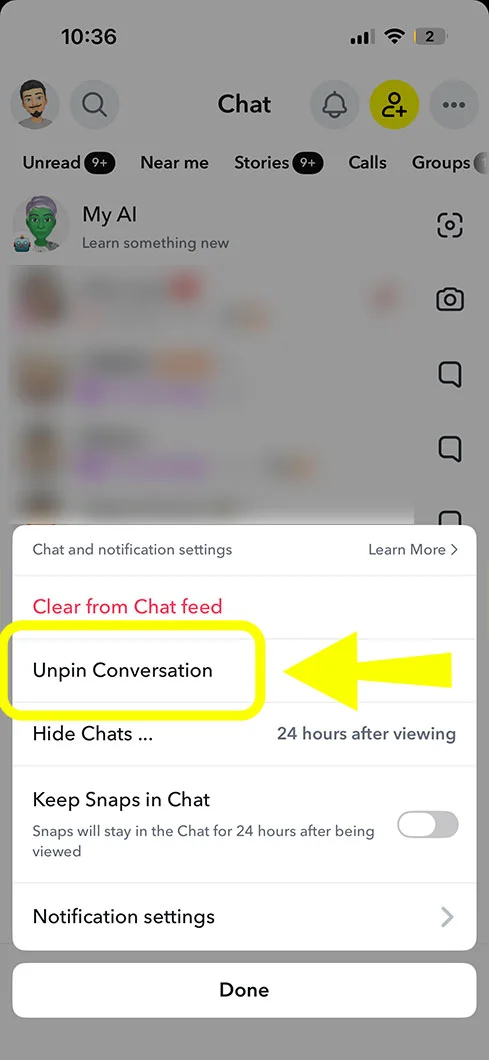
6. Choose Clear from Chat Feed if you want it removed from the visible list.
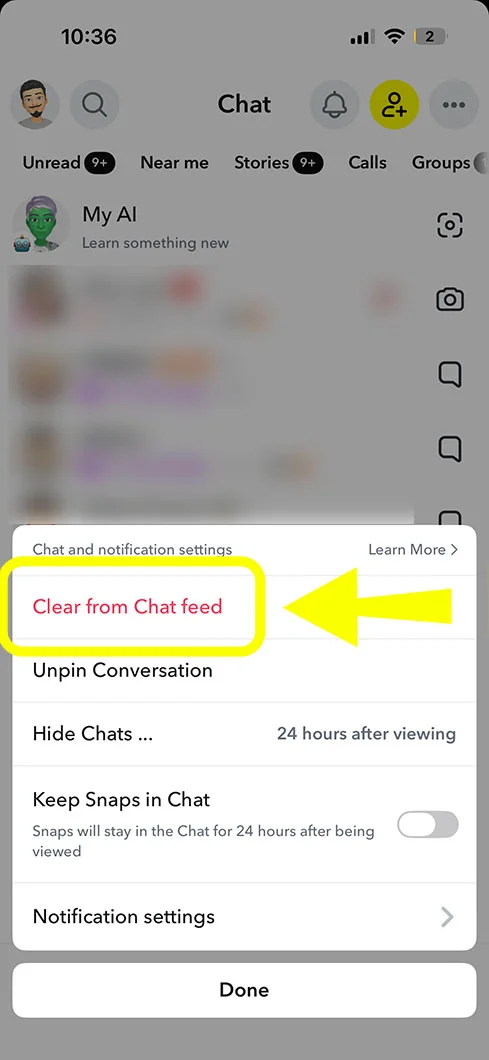
If the option is visible, clearing the chat feed is the most direct way to make it disappear from the main screen. If it is pinned, as in my case, then first you must unpin it, because pinned chats are still visible even if you erase the chats from it.
What happens after you clear Snapchat My AI conversation
Once I clear My AI from the chat feed, it no longer appears like a normal conversation in the chat list. Also, it makes my interface cleaner and less crowded.
But it is not the same as deleting the underlying AI feature from your account.
It may still be visible in the top grid area or accessible again from inside the app.
So, it can come back in the chat feed whenever I click on the My AI option again; and yes, I tried it to see whether it would come back or not.
I clicked again on the My AI option and tried to chat with it.
And yes, it worked as normal as it was previously.
Now, it is fully tested from my side that in the free version it won’t get deleted or removed permanently. But still, I could not test the premium version myself, so I could not fully identify that part from direct usage.
There is one thing to note
If Snapchat rolls out any future updates, then this feature may again be redefined or become visible on your screen or in your chat area, which you may have to remove later.
Everything can happen as we are living in the AI era now.
Hence, if your goal is to clear your chat screen, you may need to repeat the same procedure from time to time to remove it.
This is why many Snapchat users think the feature is coming back even after they removed it. But the reality is: as Snapchat’s interface changes, this AI feature may become visible again in the chat screen.
Privacy concerns people forget
A lot of users want to remove the My AI feature from Snapchat because of privacy concerns. But clearing the chats does not necessarily mean every past interaction will disappear from the Snapchat system.
I went through the My AI privacy and terms and conditions page entirely, where I found something interesting that I want to share with you in easy-to-read points:
- My AI can answer questions and chat like a bot.
- You should not share private things like passwords, bank details, or other sensitive information.
- Your chats with My AI can be saved by Snapchat until you delete them.
- If you share location with Snapchat, My AI may also use that location in replies.
What does it mean?
If you ask My AI, “find a cafe near me,” Snapchat may use your location to give a nearby suggestion accurately.
But if you ask it something personal and sensitive, Snapchat’s privacy page says you should avoid sharing that kind of information.
Because you can use My AI chatbot for general help, while chatting with friends you can ask fun questions and simple suggestions. But you always need to keep private details out of it, and you can delete My AI data if you do not want old chats stored.
The official help page also says you can clear My AI data from Snapchat settings under Privacy Controls or Account Actions.
Also, I would recommend you follow the smart move and review the privacy and terms and conditions settings by yourself and understand what data the app still retains and what it may use to improve its tool.
Hence, if your main concern is only privacy and because of that you want to remove this built-in chatbot, then you should go beyond clearing it from your feed. Go to your account settings and permission options, and follow the saved chats option too.
Snapchat+ and free account differences
One reason that often confuses users is that Snapchat usually changes its access features depending on account type and app versions. Some removal and customization options behave differently for Snapchat+ users compared to free users.
This is the reason one person sees the complete My AI removal feature in the app, while others see only the basic chat control option.
I am using the free version of Snapchat, in which I did all the previous steps, but still My AI remained visible at the top area. However, I could not fully identify it in the premium version, as I do not have the premium version, but I checked real users’ comments and related facts.
If you are also trying to understand premium account behavior, you can also read this related guide on how to tell if someone has Snapchat Plus.
Here is a direct breakdown of what is actually possible depending on whether they pay for Snapchat+ or use the standard free version.
| Feature / Control Option | Snapchat+ Subscribers | Free Account Users |
| Clear from Chat Feed | Yes (removes it from the visible feed) | May be available depending on app version |
| Unpin Conversation | Yes | May be limited depending on app version |
| Clear Conversation Data | Yes | Yes, through Snapchat settings in supported cases |
| Bio & Avatar Customization | More control in some versions | Restricted compared to premium |
| Block or Unfriend Account | No | No |
Best way to keep Snapchat clean
If you want to keep your Snapchat My AI conversation cleaner, the most effective method is to combine a few small actions rather than relying on one setting alone.
- Unpin My AI if it is fixed at the top.
- Clear it from the chat feed.
- Avoid opening it unless needed.
- Review Snapchat settings after major updates.
- Keep the app updated so you can see the latest removal options.
However, you must note it does not hide the chatbot forever. It helps you keep your feed organized for longer.
Frequently Asked Questions
Why does My AI keep showing up again on Snapchat?
My AI can appear again because Snapchat changes app layouts and feature placements through updates. So even after clearing it from the chat feed, you may still see it again in another part of the app.
Does clearing My AI from chat feed improve privacy?
Not completely. Clearing it from the feed mainly removes the visible conversation, but if you care about privacy, you should also review Privacy Controls, Account Actions, location permissions, and saved My AI data.
Can My AI use my location on Snapchat?
Yes, if you have location sharing enabled with Snapchat, My AI may use that location to provide more relevant replies, such as nearby place suggestions.
Is removing My AI the same for all Snapchat users?
No, the available options can vary based on your app version, device, region, and whether you are using the free plan or Snapchat+.
What should I do if I only want a cleaner chat screen?
If your main goal is just a cleaner chat list, then the best approach is to unpin My AI, clear it from the chat feed, and avoid reopening it unless needed.
Conclusion
If your goal is to remove Snapchat My AI from the chat feed, then yes, you can definitely make your chat screen look cleaner and less distracting. But deleting it entirely is not possible for a non-subscribed user.
But if your real concern is privacy, then clearing the feed alone is not enough. You should also review Snapchat’s privacy controls, understand what data may still be stored, and manage your account settings properly.
For me, My AI is useful in some situations, but not every user will want it inside their chat feed.
So, if you want a cleaner Snapchat experience, follow the steps above and keep checking the settings after updates.