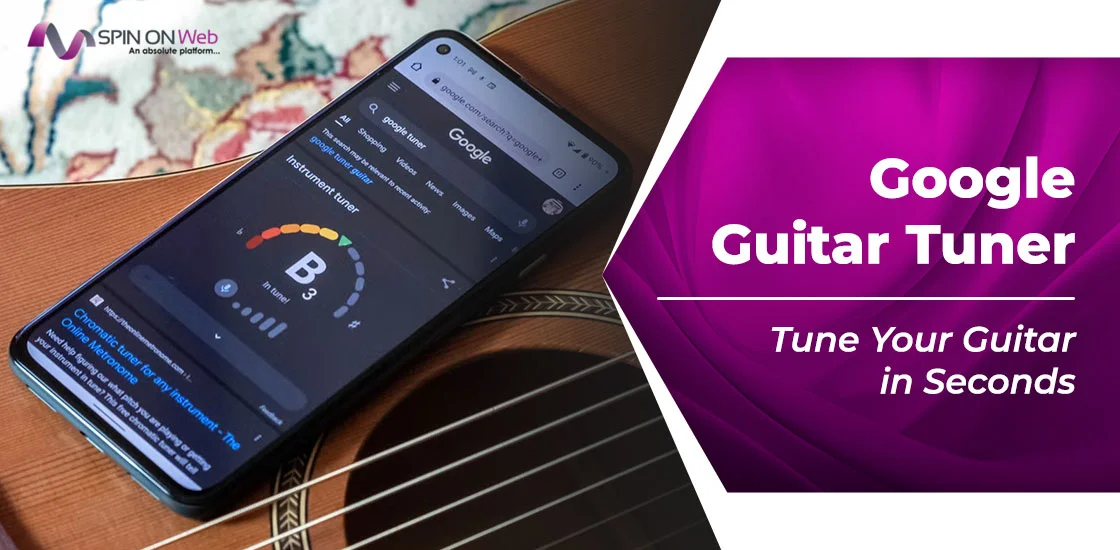
If you’re a musician who needs a quick, free way to tune on the go, this guide is for you. Here, we will discuss how to tune a guitar, violin, or any other instrument using Google Tuner without external equipment. Google Search has a built-in chromatic tuner that works directly in your browser without an app download or sign-up.
Here we will present how to use the online instrument adjustment tool from Google Tuner, its accuracy, limitations, and when to consider a dedicated tuner instead.
You can check out our dedicated blog on Google Coin Flip.
What Is Google Tuner?
First, understand what this online Google Guitar Tuner is.
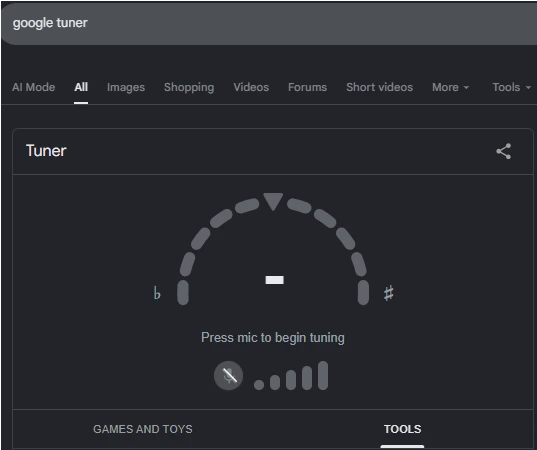
Google Tuner is a free, browser-based chromatic tuning tool built directly into Google Search. Google launched this feature in October 2021, and it has quietly become one of the most accessible tuning tools available today.
Benefits of Guitar Tuner Google:
- No installation required — works right in any modern browser
- Uses your device’s built-in microphone to detect pitch in real time
- Works on desktop, laptops, Android phones, and iPhones
- Completely free, with no paid tiers or subscriptions
- Best suited for guitar, but also works with violin, ukulele, bass, and more
- Audio is processed locally in your browser; Google states that pitch detection happens on your device and audio is not sent to its servers
Think of it like Google’s timer, metronome, or calculator: a hidden utility that appears directly in the search results.
How to Open Google Tuner
Google Tuner is available only in browsers, as a widget at the top of Google Search results. Open Google Search and type “Google tuner” or “Google guitar tuner” to show the tuner widget.
On Desktop (Windows, Mac, Chromebook)
- Open any browser and go to google.com
- Type “Google tuner” or “Google guitar tuner” and press Enter
- A tuner widget will appear at the top of the search results.
- Allow microphone access to your Google tuner.
- Play a string on your instrument. The tuner starts listening immediately.
- When your musical instrument aligns perfectly, the Google tuner will indicate green.
On Android
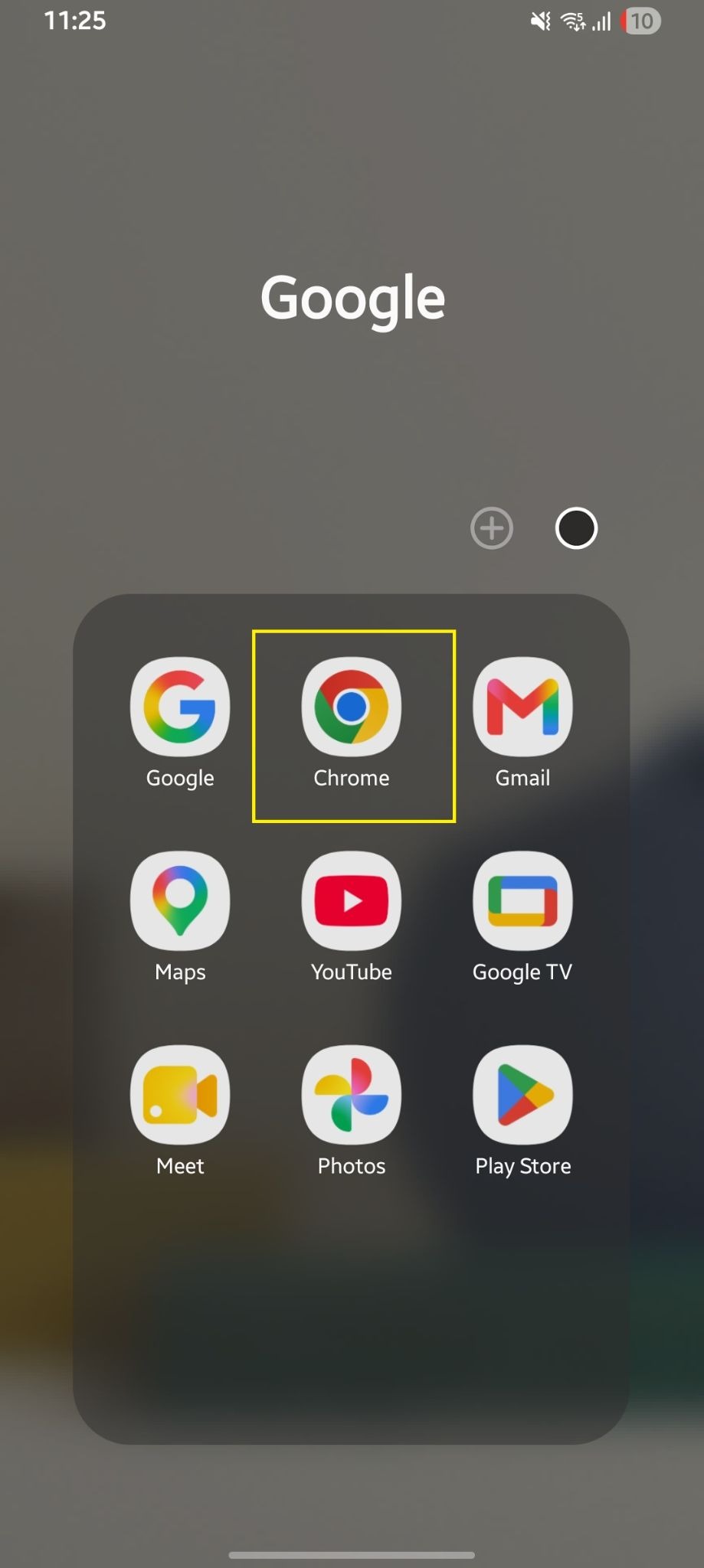
- Open Chrome or any browser on your Android phone.
- Search for “Google tuner” or “guitar tuner Google.”
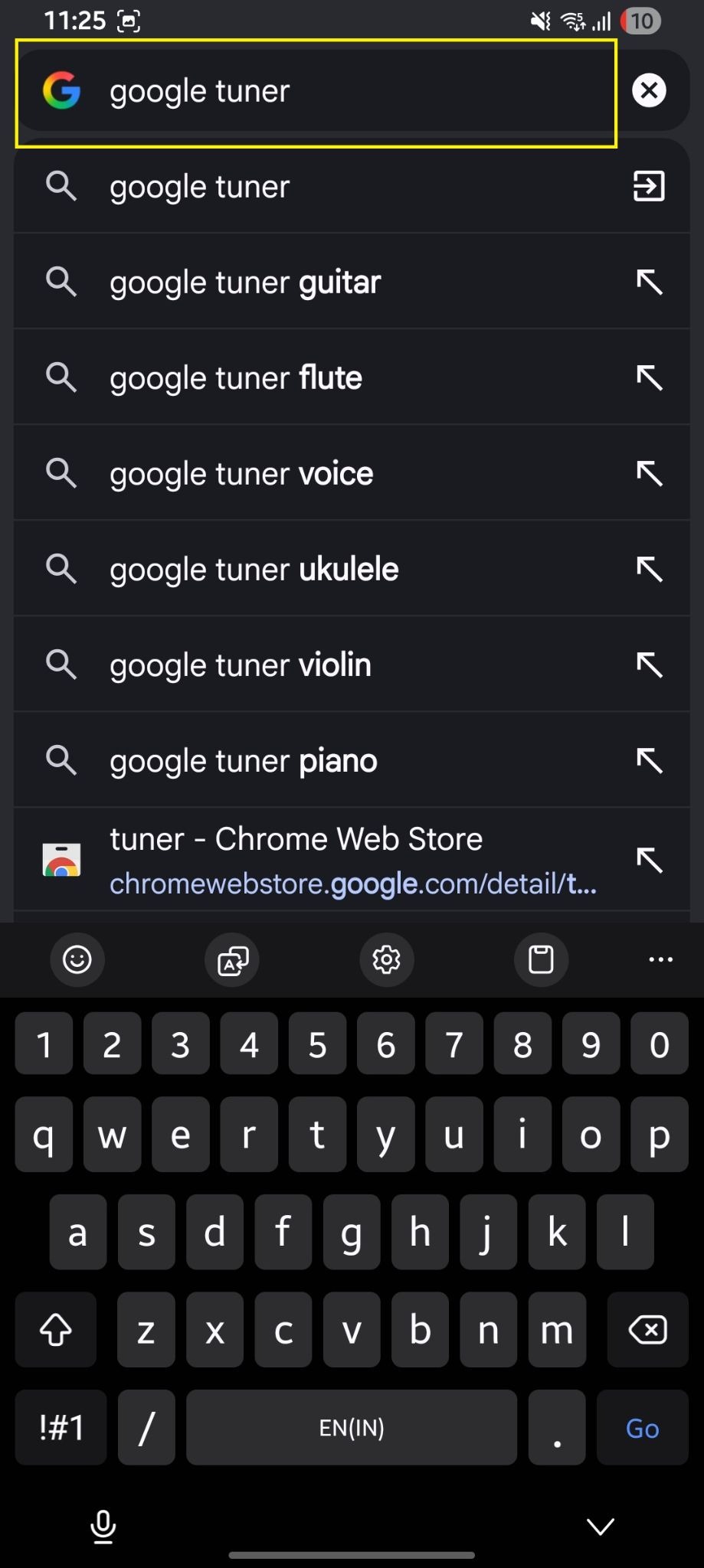
- The tuner widget appears at the top of results.
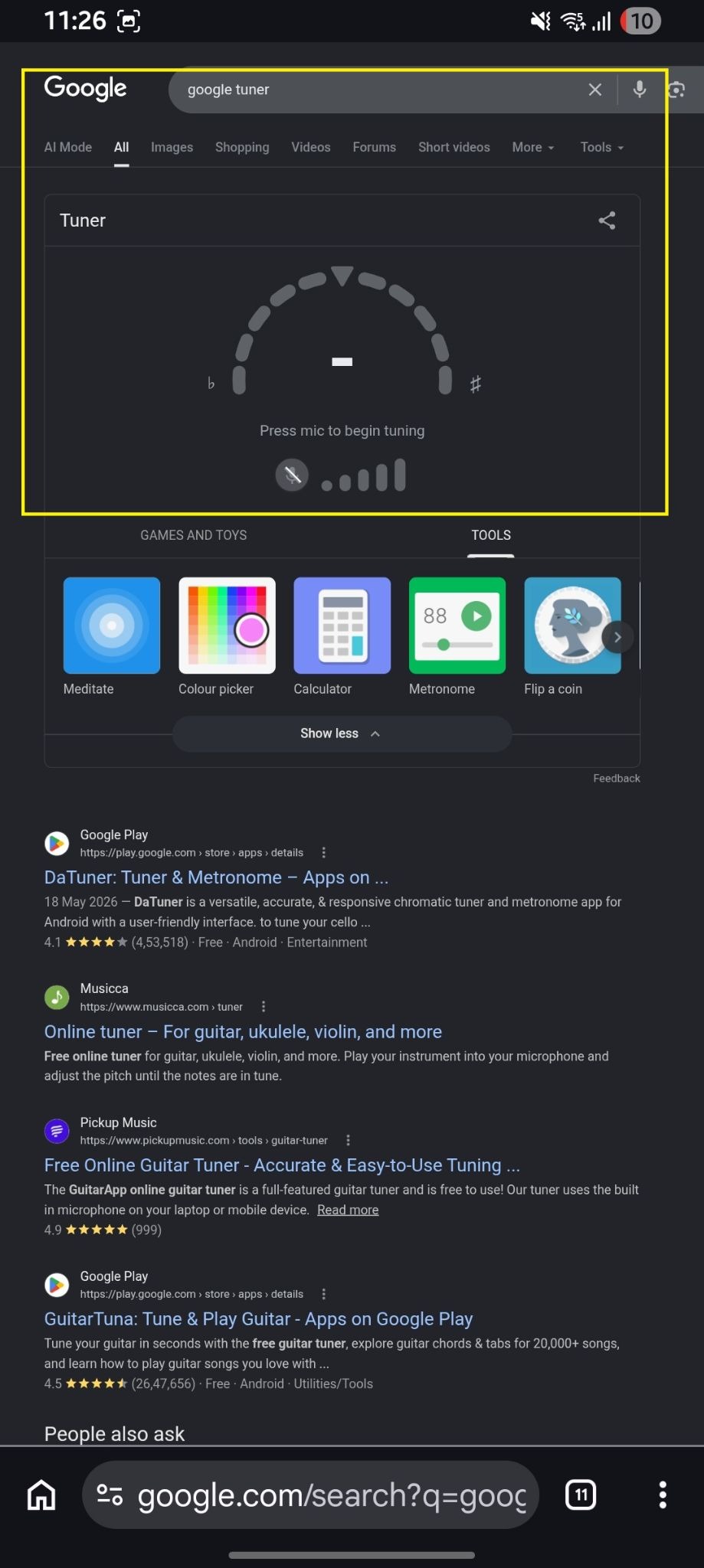
- Tap the microphone icon and allow mic access when your browser asks.
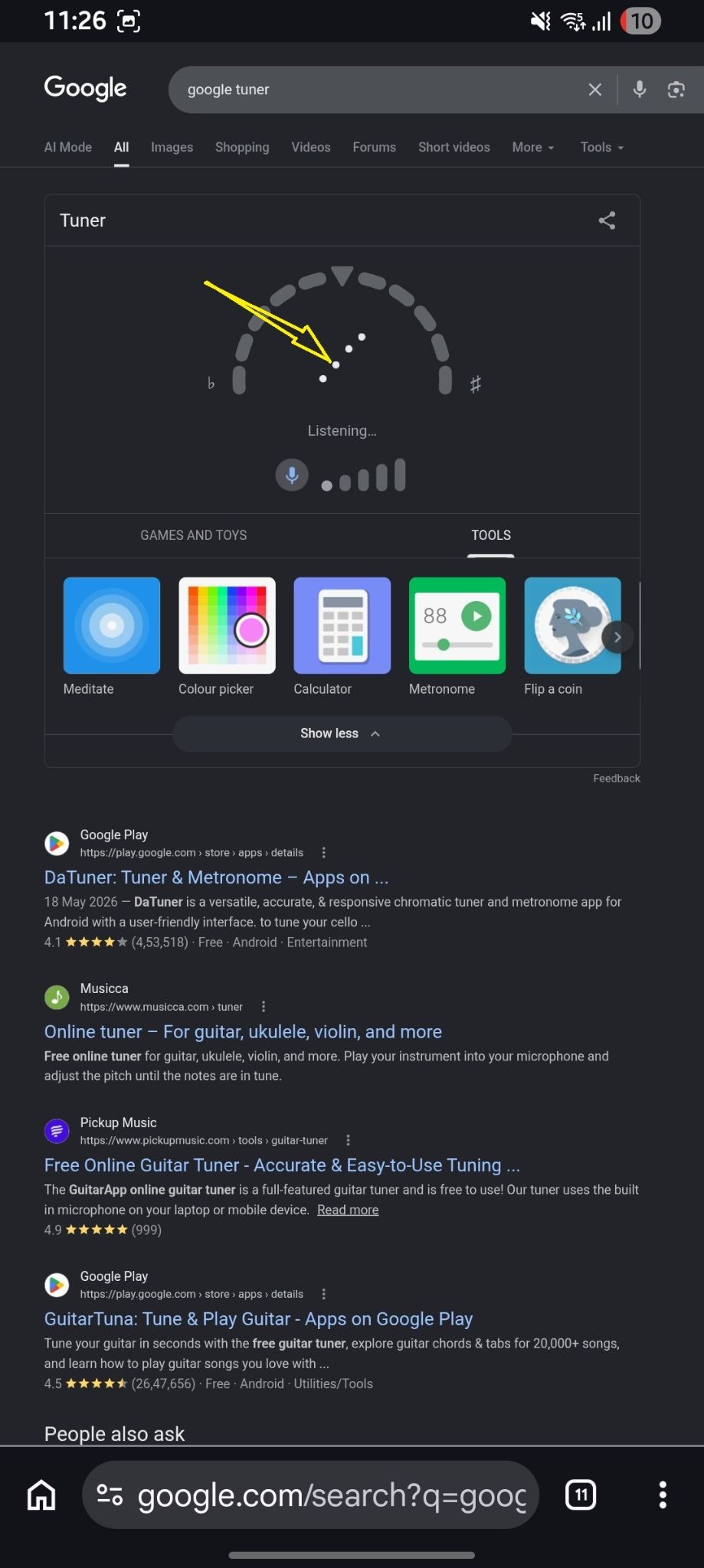
- Hold your phone near the sound hole of your guitar and pluck a string.
On iPhone
- Open Safari or Chrome on your iPhone.
- Search “Google tuner” in the address bar.
- The tuner widget appears at the top of search results and works the same way as on Android.
- Tap the mic icon, allow microphone permission, and start playing.
Note: If Safari doesn’t show a mic permission prompt, go to Settings → Safari → Microphone and enable it.
How Google Guitar Tuner Works
Here’s how Google Tuner detects pitch and shows whether your note is sharp, flat, or in tune.
The simple concept is that it listens to the input (musical sound) and then detects the frequency, matches the note, indicate using a needle indicator that your instrument is fine-tuned. Here’s the process in more detail:
Step 1: Sound Input: When you pluck a string, your device’s microphone picks up the sound wave produced by the vibrating string.
Step 2: Frequency Detection: Google Tuner analyses the audio and identifies the fundamental frequency (measured in Hz) of the note being played. A440 (Concert A = 440 Hz) is the standard reference pitch it uses.
Step 2 – Frequency detection: Google Tuner analyzes the audio to find the fundamental frequency (in Hz) of the note, using A440 (Concert A = 440 Hz) as the reference pitch.
Step 3: Note Matching: The tool matches the detected frequency to the nearest musical note on the chromatic scale — for example, E2, A2, D3, G3, B3, or E4 for a standard guitar.
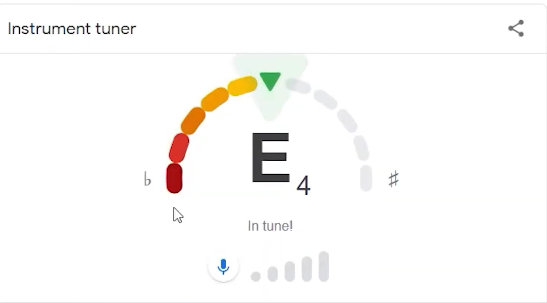
Step 4: Visual Feedback: A needle or indicator shows whether your string is:
- Sharp (too high in pitch) — the needle moves to the right
- Flat (too low in pitch) — the needle moves to the left
- In tune — the needle centers and typically turns green
All of this processing happens locally in your browser; no audio is sent to Google’s servers. The tool processes the microphone input in the browser itself using the Web Audio API.
Pro tip: Google Tuner detects one note at a time. Pluck individual strings instead of strumming chords; multiple notes create overlapping frequencies that can confuse the detector
Instruments Google Tuner Supports
Although Google promotes it mainly as a guitar tuner, its chromatic engine can detect any note from any instrument that produces a clear pitch. Here’s a practical breakdown by instrument:
| Instrument | Support Level | Notes |
| Guitar (Acoustic/Electric) | ✅ Best | Ideal use case; clear detection on all 6 strings |
| Ukulele | ✅ Good | Works well; higher pitch range detected easily |
| Violin | ✅ Good | Quiet environment recommended; bow slowly for cleaner signal |
| Mandolin | ✅ Good | Manual note selection helps; pluck individual strings |
| Bass Guitar | ⚠️ Limited | Low frequencies harder to detect; play loudly, hold phone close |
| Banjo | ⚠️ Partial | Depends on tuning style; chromatic detection works in theory |
| Cello / Viola | ✅ Good | Works similarly to violin; needs quiet room |
| Wind/Brass | 🔶 Pinch Use | Can detect pitch for reference, not optimized for these |
Searches for “Google Tuner violin” are common—and yes, it works well for violin in quiet conditions. The chromatic detection is instrument-agnostic, so as long as your instrument produces a clear, sustained single note, the tuner can read it.
How to Tune Your Guitar with Google Tuner
Here is a simple, repeatable process for tuning a standard 6-string guitar using Google Tuner.
Standard Guitar Tuning (E A D G B E)
A standard-tuned guitar has six strings. From the thickest (lowest-pitched) to the thinnest (highest-pitched), the notes are:
| String Number | String Name | Note | Approx. Frequency |
| 6th (thickest) | Low E | E2 | 82 Hz |
| 5th | A | A2 | 110 Hz |
| 4th | D | D3 | 147 Hz |
| 3rd | G | G3 | 196 Hz |
| 2nd | B | B3 | 247 Hz |
| 1st (thinnest) | High E | E4 | 330 Hz |
Follow these steps for each string:
Step 1. Open Google Tuner and allow microphone access.
Step 2. Start with the 6th string (low E). Pluck it firmly.
Step 3. Watch the tuner needle. If it shows ‘F’ or ‘Eb’, the string is not at E yet.
Step 4. If the needle swings right (sharp), loosen the tuning peg slightly.
Step 5. If the needle swings left (flat), tighten the tuning peg slowly.
Step 6. Pluck again. Repeat until the needle centers on E and turns green.
Step 7. Move to the 5th string (A) and repeat the process for all six strings.
Step 8. After tuning all strings, go back and re-check from the beginning. Strings affect each other’s tension, so re-checking catches any drift.
Important: Always tune up to the target note. If a string is sharp, loosen it below the target, then tighten up to the correct pitch. This keeps tension consistent and helps the string stay in tune longer.
Google Tuner Accuracy
Google Tuner is accurate enough for most everyday practice—but it’s not perfect in every situation.
When It Performs Well
- In a quiet room with minimal background noise
- On smartphones or laptops with a decent built‑in microphone
- When playing acoustic guitar close to the phone, or electric guitar at low volume through a clean tone
- For standard tunings where the note is clearly defined
When Accuracy Suffers
- In noisy environments — background music, TV, HVAC systems
- On older laptops or low‑cost devices with poor built‑in microphones
- When playing chords instead of single strings
- With heavily distorted or effected electric guitar tones
- For bass and other instruments with very low fundamental frequencies
How It Compares to Clip-On Tuners
Clip‑on tuners detect vibration directly from the instrument body instead of sound through a microphone. This makes them largely immune to background noise. For live performance or noisy practice spaces, a $10–$20 clip-on tuner will outperform Google Tuner every time.
For home practice in a relatively quiet room, Google Tuner is accurate enough for most players, except for critical intonation or recording work. It won’t provide cent‑level precision like a professional strobe tuner, but it will get your guitar into playable tune in under two minutes.
Google Tuner vs Dedicated Tuner Apps
Should you use Google Tuner or a dedicated app? Here’s a straight comparison
| Feature | Google Tuner | Dedicated Tuner Apps |
| Cost | Free | Free to paid ($0–$10+) |
| Installation | None required | Download required |
| Offline use | ❌ Needs internet | ✅ Most work offline |
| Accuracy | Good (mic-dependent) | Good to excellent |
| Alternate tunings | ❌ Not supported | ✅ Many presets available |
| Instrument support | Chromatic (all notes) | Broader presets |
| Ads | None | Often ad-supported |
| Metronome included | ❌ Separate Google feature | ✅ Often included |
| Calibration (A4 Hz) | Fixed at 440 Hz | Adjustable in most apps |
| Best for | Quick, casual tuning | Regular/professional use |
Use Google Tuner for quick, casual tuning in a browser. Choose a dedicated app if you need offline access, alternate tunings, or more advanced features
Bottom line: Google Tuner wins on convenience and accessibility. Dedicated apps win on features and offline use. For most players who just need to tune up quickly before a practice session, Google Tuner is more than sufficient.
Google Tuner vs Google Metronome
Many musicians don’t realize Google offers two separate music utilities in Search: a tuner and a metronome
One is Google Tuner and the second one is Google Metronome. Let’s understand the difference between the two.
| Google Tuner | Google Metronome | |
| What it does | Detects pitch of your instrument | Keeps a steady tempo/beat |
| Input | Uses your microphone | No microphone needed |
| Output | Shows sharp/flat/in-tune | Audible click at your BPM |
| Use case | Before playing | While playing |
| How to open | Search “Google tuner” | Search “Google metronome” |
| BPM range | N/A | 40–218 BPM adjustable |
To use Google Metronome, search “Google metronome” and a clickable tempo widget will appear at the top of the results
You can set any BPM from 40 to 218. Use the tuner before you start playing, and the metronome while you practice
Common Problems and Fixes
If Google Tuner is not working, perform the quick steps to fix that.
Problem 1: Google Tuner Not Showing
When the tuner widget doesn’t appear in your search results:
Fixes:
- Enter the correct keywords into the search bar. Try searching the exact phrase “tuner” or “guitar tuner” instead of just “Google tuner”
- Make sure you’re logged into a Google account (it sometimes helps trigger the widget)
- Try a different browser (Use Chrome for less chaos).
Problem 2: Microphone Permission Denied
Fixes:
- Click the lock icon (🔒) in your browser’s address bar
- Find Microphone permissions and set to Allow
- Refresh the page and try again
- On iPhone: Go to Settings → Safari → Microphone → Allow
- On Android: Go to Settings → Apps → Chrome → Permissions → Microphone → Allow
Problem 3: Tuner Doesn’t Detect String Sound
Fixes:
- Move your device closer to the guitar’s sound hole (acoustic) or speaker (electric)
- Pluck the string harder — a stronger attack produces a cleaner signal
- Reduce background noise (turn off TV, close windows)
- Check that your microphone isn’t covered by a phone case.
Is Google Tuner Available as an App?
No. There is no official Google Tuner app available for download. If you search for “Google Tuner APK” or “Google Tuner download,” you’ll find third‑party apps using Google’s name. These are not official Google products and should be avoided.
The official Google Tuner is:
- Browser-only — not available as a standalone Android or iOS app
- Not available as an APK file to sideload
- Not downloadable in any form
- Accessible only through Google Search in a mobile or desktop browser
To use it on Android, simply open Chrome and search for it. On iPhone, use Safari or Chrome. That is the Google Tuner for Android/iPhone — the browser version.
Note: Any APK claiming to be the “Google Tuner app” is not from Google. Avoid downloading unofficial APKs—they can contain malware or unwanted software
Best Tips for Accurate Tuning with Google Tuner
These practical tips will help you get the most reliable results from Google Tuner.
- Tune in a quiet room. Close the door, mute the TV. Background noise is the single biggest cause of inaccurate readings.
- Hold your phone near the sound hole. For acoustic guitar, 6–12 inches from the sound hole is ideal. Too close can distort; too far loses the signal.
- Tune one string at a time, never strum chords. Chromatic tuners read one frequency — multiple notes confuse the algorithm.
- Always tune up to a note. If the string is sharp, loosen it past the target, then tighten up to it. This stabilizes string tension.
- Tune twice through all six strings. The tension of tuning one string shifts others slightly. A second pass catches drift.
- Replace old strings before trying to tune. Old strings develop dead spots and intonation issues that no tuner can fix.
- Let the note ring before reading. The first millisecond of a pluck is called the attack transient — it’s noisy and less stable. The tuner reads better once the note sustains.
- Use landscape mode on phones. Some users find the tuner widget easier to read when the phone is horizontal.
Frequently Asked Questions
Is Google Tuner free?
Yes. Google Tuner is completely free. There are no paid tiers, subscriptions, or in‑app purchases.
Does Google Tuner work offline?
No. Google Tuner requires an internet connection because it loads as part of the Google Search interface.
Can I tune a violin using Google Tuner?
Yes. Google Tuner works for violin. Standard violin tuning (G3–D4–A4–E5) is well within its detection range. Bow each string slowly and steadily in a quiet room for best results
Is Google Tuner accurate?
Google Tuner is accurate enough for everyday practice and rehearsal. Accuracy drops in noisy environments or with older, low‑quality microphones. For professional recording or live performance, a clip‑on or hardware tuner will outperform it.
Why isn’t Google Tuner working?
Common reasons include: microphone permission denied, background noise, browser issues, or the widget not appearing. See the “Common Problems and Fixes” section above for step‑by‑step solutions
Final Thoughts
Google Tuner earns its place by doing one thing well: helping you get in tune quickly, for free, on any device, without downloading anything.
For beginners without a tuner, intermediate players who forgot their clip‑on, or teachers who need a quick classroom demo, Google Tuner is often the right tool. Open Google, type “Google tuner,” allow the mic, play a note, and tune. That’s it. You can explore other Google-integrated tools like Google spirit level and more.