To reset YouTube recommendations, delete your YouTube watch history and search history, then clear your old “Not interested” and “Don’t recommend channel” feedback. On the app, go to Settings > Manage all history > Delete > Delete all time. YouTube has no single “Reset Recommendations” button, so a real fresh start comes from wiping the signals your feed is built on.
This guide shows you how to do that on Android, iPhone, iPad, PC, laptop, and smart TV. It also covers partial resets, signed-out viewing, YouTube Kids, Shorts, and the new Custom feed option.
Quick Overview
| What You Want | Best Method | Where to Find It |
| Full reset of your Home feed | Delete all watch and search history | Settings > Manage all history > Delete > Delete all time |
| Undo old “Not interested” taps | Delete YouTube feedback | myactivity.google.com > Other activity |
| Remove one bad topic | Delete specific videos and searches | History page or Manage all history |
| Reset without deleting history | Pause history, prune likes, use “Not interested” | Manage all history > Controls |
| Reset on a smart TV | Clear watch and search history | YouTube TV app > Settings |
| Reset while signed out | Clear or pause device history | YouTube > History (signed out) |
| Reset Shorts only | Show fewer Shorts or Shorts feed limit | Home Shorts shelf or Settings > Time management |
| Reset a child’s feed | Clear history in Parent settings | YouTube Kids > Parent settings |
Fastest full reset: delete all history, delete “Not interested” feedback, unlike unwanted videos, then watch a few videos you actually enjoy.
Why Do Your YouTube Recommendations Go Wrong?
Your recommendations drift because YouTube builds your feed mostly from what you watch and search. According to YouTube’s explanation of how recommendations work, Home feed suggestions rely mainly on watch history, and your searches also shape future suggestions.
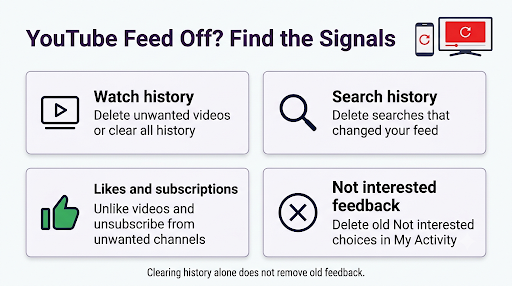
So one late-night rabbit hole, a kid watching cartoons on your account, or a video a friend cast to your TV can tilt your whole feed. These are the signals that matter:
- Watch history: the biggest signal for your Home feed and Up Next sidebar
- Search history: what you look up on YouTube
- Liked videos: each like says “more like this”
- Subscriptions: channels you follow keep showing up
- Feedback: your “Not interested,” “Don’t recommend channel,” and “Show fewer Shorts” choices
Important Point to be Considered! Watch history and feedback are stored separately. Clearing your watch history does not remove your old “Not interested” choices. That is why many people delete their history and still feel the feed is “stuck.” You need to clear both for a true reset.
Where Are the YouTube Recommendation Settings?
There is no single “recommendation settings” page on YouTube. The controls are spread across a few places, and it helps to know them before you start:
- Manage all history: delete, pause, or auto-delete watch and search history (in YouTube Settings or your Google Account)
- Google My Activity: delete “Not interested” and “Show fewer Shorts” feedback under Other activity
- Three-dot menu on each video: “Not interested,” “Don’t recommend channel,” and “Remove from watch history”
- Time management: Shorts feed limit on the mobile app
- Topic chips and Custom feed: the buttons at the top of Home
If you have been searching for how to reset YouTube content preferences, these are the same controls. YouTube does not have a separate content preferences menu for regular accounts, so clearing history and feedback is how you reset what it thinks you like.
How Do You Reset YouTube Recommendations on Mobile (iPhone, Android, and iPad)?
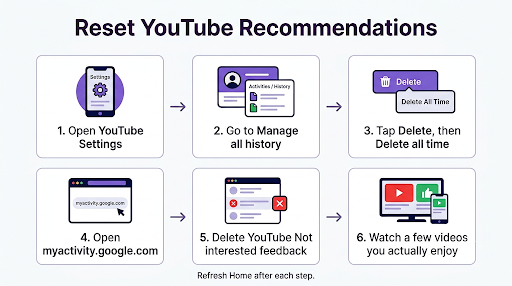
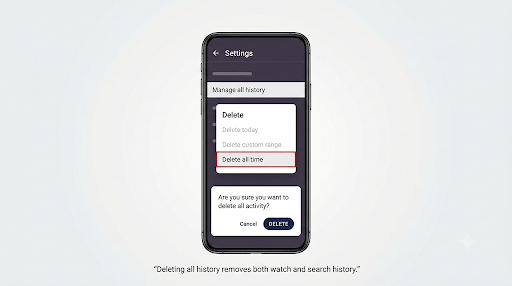
On the YouTube app, open Settings, tap Manage all history, then choose Delete > Delete all time. The steps are the same on iPhone, Android phones, and iPad.
- Open the YouTube app and sign in.
- Tap your profile picture or the You tab.
- Tap the Settings gear icon.
- Tap Manage all history. This opens your YouTube History page.
- Tap Delete, then choose Delete all time.
- Confirm by tapping Delete again.
- Go back to Home and pull down to refresh the feed.
This removes both watch history and search history in one go. YouTube’s search history help page confirms that using Delete in this screen also deletes watch history for the selected time frame.
Pro Tip! If you only want to clear watch history and keep searches, open the History page in the You tab, tap the three-dot menu, and choose Clear all watch history.
How to Reset the YouTube Algorithm on Android
Android uses the same in-app steps above. One common Android myth is worth clearing up: clearing the YouTube app’s cache or storage does not reset your recommendations. It only removes temporary files on the phone. Your recommendations live in your Google Account, so they come right back once you sign in again. The same is true for uninstalling and reinstalling the app on iPhone or Android.
How Do You Reset YouTube Recommendations on PC or Laptop?
On a computer, go to History in the left menu, click Manage all history, then select Delete > Delete all time. It works the same on Windows, Mac, and Chromebook, in any browser.
- Go to youtube.com and sign in.
- Click History in the left menu. If you do not see it, click the three-line menu icon first.
- Click Manage all history on the right side.
- Click Delete, then choose Delete all time.
- Click Delete to confirm.
- Return to YouTube and refresh your homepage.
You can also do this from your Google Account. Open your YouTube History in My Activity and use the same Delete option.
Pro Tip! Want to clear search suggestions only? Open YouTube Settings and select Clear search history under History and Data. This also clears the “Top channels you watch” shelf on the search page.
How Do You Reset YouTube Recommendations on a Smart TV?
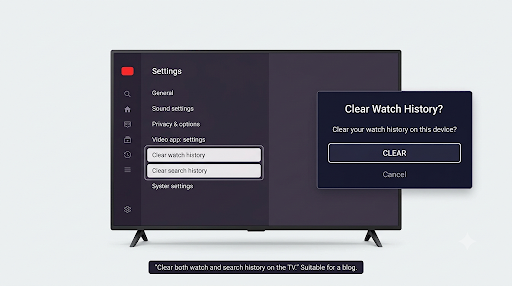
On a smart TV, open the YouTube app, go to Settings in the left menu, and select Clear watch history, then Clear search history. This works on most smart TVs, streaming sticks, and consoles, including Samsung, LG, Roku, Fire TV, Google TV, Apple TV, Xbox, and PlayStation.
- Open the YouTube app on your TV.
- Go to Settings in the left-hand menu.
- Select Clear watch history and confirm.
- Select Clear search history and confirm.
- Optional: select Pause watch history if guests or kids use the TV.
These steps follow YouTube’s official watch history help page for TVs and consoles. Menu names may differ a little by TV brand and app version.
To remove one video from the TV Home screen, highlight it, press and hold the select button on your remote, and choose Not interested. Choose “Tell us why” to block the whole channel instead.
Important Point to be Considered! The TV app does not let you review or delete old “Not interested” feedback. Do that from your phone or computer. Those changes apply to your whole account, including your TV. Also, YouTube TV, the paid live TV service, is a different app. Pausing watch history inside YouTube TV only affects YouTube TV, not your regular YouTube feed.
How Do You Clear “Not Interested” Feedback to Fully Reset Your Feed?
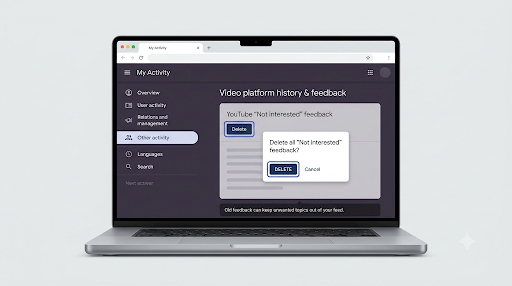
Go to myactivity.google.com, open Other activity, find YouTube “Not interested” feedback, and click Delete. This is the step most guides skip, and it is the main reason a reset can feel like it did not work.
- Open myactivity.google.com and sign in.
- Select Other activity (sometimes labeled Other Google activity).
- Scroll to YouTube “Not interested” feedback.
- Click Delete and confirm.
- If you see a “Show fewer Shorts” entry, delete it too if you want Shorts back.
YouTube’s recommendations help page says this feedback is used to tune your feed. So if you once tapped “Not interested” on a topic you now enjoy, clearing it lets that content return.
How Do You Reset YouTube Shorts Recommendations?
To reset your Shorts feed, delete your watch history, then use “Show fewer Shorts” or “Not interested” on Shorts you do not want. Shorts you watch count toward your history just like long videos, so a full history wipe resets them too.
- Show fewer Shorts: on Home, scroll to a Shorts shelf, tap the three-dot menu at the top of it, and choose Show fewer Shorts.
- Block single Shorts: tap the three-dot menu on a Short and choose Not interested or Don’t recommend channel.
- Shorts feed limit: on the mobile app, go to Settings > Time management and set a daily Shorts feed limit. Less Shorts scrolling means fewer Shorts signals. This option may not appear in every app version or region, and it is not on desktop or TV.
How Do You Reset YouTube Recommendations Without Deleting History?
You can reset your feed without wiping history by removing a few problem videos, unliking content, using “Not interested,” and pausing history when needed. This is the better choice if you rely on history to find old videos.
1. Remove Only the Videos That Caused the Problem
Open History, find the videos tied to the topic you no longer want, and choose Remove from watch history from the X or three-dot menu. Delete related searches too. YouTube says removing a past search on a topic can lower the chance of similar suggestions.
2. Use “Not Interested” and “Don’t Recommend Channel”
Tap the three-dot menu next to any recommended video and pick Not interested. To block a creator, pick Don’t recommend channel. Doing this on several unwanted videos usually starts shifting the feed.
3. Clean Up Liked Videos and Subscriptions
Open your Liked videos playlist and remove anything that no longer fits your taste. Then review Subscriptions and unsubscribe from channels you stopped watching. Both keep feeding YouTube’s picture of you.
4. Pause History for Off-Topic Viewing
In Manage all history, open the Controls tab and turn off Include the YouTube videos you watch while you watch something you do not want in your feed. Turn it back on when you are done. Mobile users can also tap their profile picture and choose Turn on Incognito for a one-off session.
5. Save Videos Before You Wipe Anything
If you might do a full reset later, add your favorites to a playlist or Watch Later first. Then deleting history will not cost you anything you care about.
Pro Tip! Turn on Auto-delete in Manage all history and pick a time range, such as 3 months. YouTube keeps only recent activity, so your feed stays fresh without manual resets.
How Do You Reset YouTube Recommendations When Not Signed In?
When you are signed out, go to youtube.com, select History, and choose Clear all watch history or Pause watch history. YouTube still personalizes your feed from what you watch on that device, even without an account.
- On a browser: open YouTube signed out, click History, then clear or pause watch history. Clearing youtube.com cookies in your browser also wipes signed-out personalization on that browser.
- On a TV or console: use Settings > Clear watch history and Clear search history inside the YouTube app.
- On a phone: if you use the app signed out, open Settings > History & privacy (when shown) to clear or pause watch history. Signed-in users can tap their profile picture and choose Turn on Incognito, which acts like being signed out.
Important Point to be Considered! Signed-out history is tied to one device or browser. Clearing it on your laptop does not touch your phone or TV. Some search history tools are also limited when you are not signed in.
How Do You Reset YouTube Recommendations for Kids?
To reset a child’s feed in YouTube Kids, open Parent settings, select your child’s profile, and choose Clear history. YouTube says clearing history in YouTube Kids resets the Recommended and Watch it again videos.
- In the YouTube Kids app, tap the lock icon or Settings.
- Solve the multiplication problem or enter your passcode.
- Select your child’s profile and enter your parent account password.
- Tap Clear history and confirm.
You can do the same from your own YouTube app under Settings > Family Center (called Parent settings in some versions) for both YouTube Kids profiles and supervised teen accounts. There you can also pause watch history and pause search history for your child. See YouTube’s parental controls guide for every option.
Can You Use YouTube’s Custom Feed Instead of a Full Reset?
Yes, if you are in the United States and the feature shows up for you. YouTube’s Your custom feed lets you type what you want to see, and it builds a separate feed on Home from that prompt. It does not replace your main feed, but it is a quick way to break out of the same old suggestions.
- Sign in to YouTube and go to Home.
- Tap the Your custom feed chip at the top.
- Type a prompt, such as “beginner home workouts and healthy recipes,” or tap a suggested prompt.
- Edit the prompt any time to change the feed.
According to YouTube’s custom feed help page, the feature is in English in the U.S. for now, and prompts expire after 30 days of inactivity. Your watch history must be on for the chip to appear.
Important Point to be Considered! Videos you watch inside a custom feed still go into your normal watch history. So they can also change your main Home recommendations over time.
Why Is Your YouTube Home Feed Blank After the Reset?
Your Home feed goes blank if you deleted your history and also turned watch history off. YouTube removes Home recommendations when history is off and there is no recent watch activity to use.
To fix it, go to Manage all history > Controls and turn YouTube History back on. Then watch a few videos you actually like. If your history still refuses to save or show up, follow our guide on fixing YouTube watch history not showing to sort it out.
Why Are Your YouTube Recommendations Not Changing After Clearing History?
If your feed looks the same after a reset, something else is still sending old signals. Work through this checklist:
- Old feedback is still there: delete “Not interested” and “Show fewer Shorts” entries in My Activity.
- Likes and subscriptions: unlike and unsubscribe from content you no longer want.
- Wrong account or brand channel: check which account is active before deleting. Each one has its own history.
- Another device is still watching: a signed-in TV, tablet, or family phone can add new history right after you clear it.
- The feed has not refreshed: pull down on Home, restart the app, or reload the page.
- Your first new videos were off-topic: the first few videos after a reset carry a lot of weight.
How Do You Retrain YouTube After a Reset?
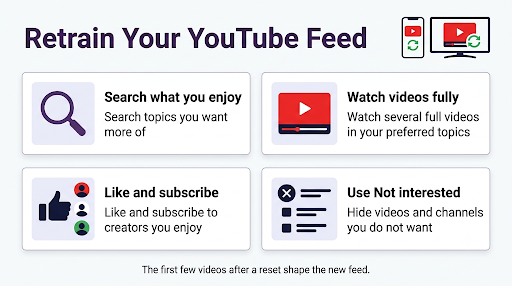
Search for topics you care about, watch several full videos in those areas, and like or subscribe to creators you enjoy. The first few days after a reset shape your new feed the most.
- Watch videos fully instead of clicking and leaving.
- Use topic chips at the top of Home, such as Music, Gaming, or “New to you,” when they appear.
- Skip clickbait at the start. One curiosity click can pull your feed back toward the same content.
- Keep shared viewing separate. Use a different account, Incognito, or a YouTube Kids profile for kids and guests.
How fast it works depends on how much you watch. YouTube does not publish a timeline. The more relevant videos you watch after the reset, the faster the new feed takes shape.
Common Mistakes That Stop a YouTube Reset From Working
- Only clearing watch history: old searches and feedback still steer your feed.
- Clearing the app cache instead of history: this does nothing for a signed-in account.
- Resetting on the TV only: feedback lives in your account, so clean it up on a phone or computer.
- Letting others use your profile: one family movie night on your account can undo the reset.
- Turning history off by accident: you get an empty Home page instead of a fresh one.
Frequently Asked Questions
Is there a reset button for YouTube recommendations?
No. YouTube does not offer a one-tap reset. You get the same result by deleting your watch and search history and clearing your “Not interested” feedback in My Activity.
How do I reset my YouTube old feed and get it back?
Deleted history cannot be restored, so an old feed cannot come back exactly. You can rebuild it by searching for and watching the channels you used to enjoy, and by deleting any “Not interested” feedback that is hiding them.
How do I reset my YouTube activity across all devices?
Delete your activity at myactivity.google.com. Because history is saved to your Google Account, this resets activity on every device where you are signed in, including your phone, laptop, and TV.
How do I delete all recommended videos on YouTube?
You cannot delete recommendations as a list, since YouTube generates them live. Removing the history and feedback behind them is what clears them. To hide the Home feed entirely, delete and turn off your watch history.
Will resetting recommendations delete my subscriptions or playlists?
No. Subscriptions, playlists, Watch Later, and liked videos stay. You do lose “Continue watching” progress, so partly watched videos start from the beginning.
Will resetting YouTube recommendations change my YouTube Music suggestions?
It can. YouTube Music activity can appear in your YouTube watch history, so deleting all history may also change music suggestions. Save favorite songs to a playlist first.
How often should you reset YouTube recommendations?
Most people only need a full reset when the feed is clearly off. For everyday upkeep, Auto-delete plus a few “Not interested” taps works better than wiping everything often.
Final Recommendation
If your feed is completely off, do the full reset: delete all watch and search history, then clear your “Not interested” feedback in My Activity. If only one topic bothers you, skip the wipe and remove the specific videos, searches, and likes behind it. For kids, clear history in Parent settings. Then spend a few days watching what you actually enjoy, and turn on Auto-delete so you rarely need to reset again.