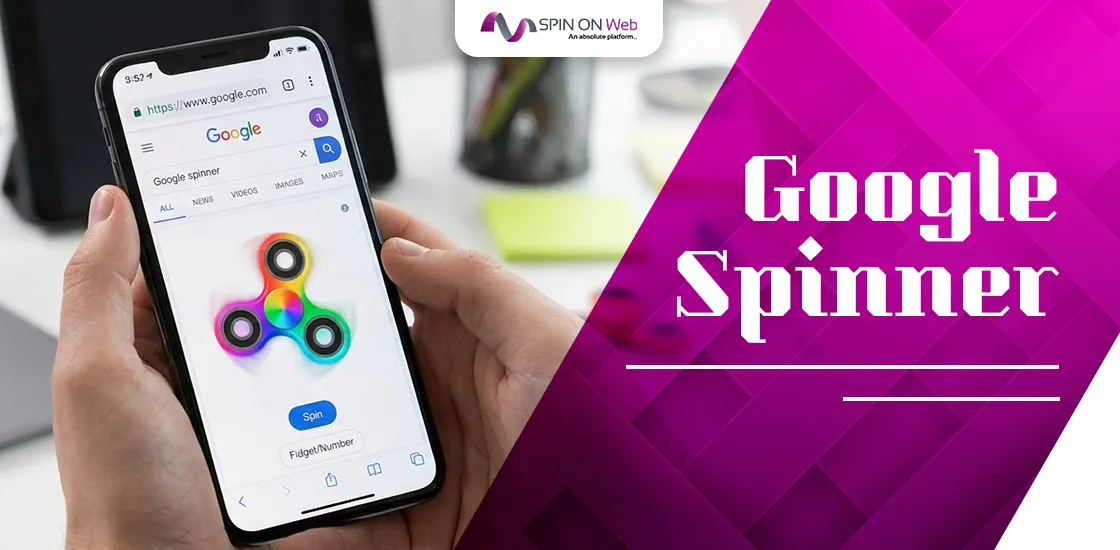
To open the Google spinner, type “spinner” into Google Search and press Enter. A small spinning widget appears right at the top of the results, with two modes: a virtual fidget spinner and a number wheel you can set anywhere from 2 to 20 slots. No app, no sign-in, and nothing to download.
It sounds simple, and it is. But most guides stop at “search spinner and click Spin.” They skip the parts people actually get stuck on: why the fidget mode never picks anything, how to use the wheel when you have names instead of numbers, what to do when you need more than 20 options, and when a different tool is the smarter choice. This guide covers all of that.
Quick Overview
- How to open it: Search “spinner” on Google (desktop, mobile browser, or the Google app).
- Two modes: “Fidget” (a toy that just spins) and “Number” (a wheel that stops on a result).
- Wheel size: Choose 2 to 20 numbers from the wheel size menu. The default shows 6, like a die.
- How to spin: Click or tap the Spin button, or drag the wheel with your mouse or finger.
- Main limit: You can’t type names, words, or colors onto the wheel. Numbers only.
- Need names or 20+ entries? Number your list and use the wheel, or switch to a tool like Wheel of Names or Picker Wheel.
What Is the Google Spinner?
The Google spinner is a free interactive widget built into Google Search results. It first showed up in June 2017, right at the peak of the fidget spinner craze. Reddit users spotted it, and tech sites quickly covered it. Search Engine Journal described it as Google’s latest Easter egg, noting that you could toggle between a fidget spinner and a numbered wheel.
Years later, the fidget toy is mostly a novelty. The number wheel is the part people keep coming back to. Teachers use it to call on students. Families use it to settle who does the dishes. Game nights use it when nobody can find the dice.
Today it sits inside Google’s “Games & Toys” and “Tools” panel, alongside other quick widgets like a calculator, metronome, color picker, tuner, roll a die, and flip a coin. You can jump between them from the same results card.
How Do You Use the Google Spinner Step by Step?
Open Google, search “spinner,” pick your mode, and hit Spin.
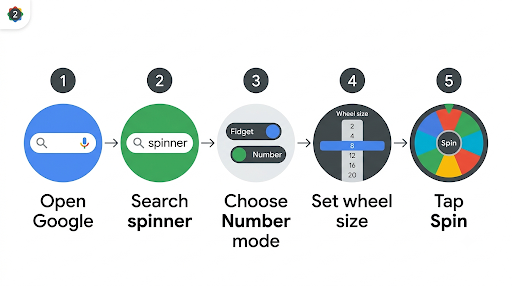
Here’s the full process so nothing trips you up.
- Go to Google.com or open the Google app on your phone.
- Type “spinner” in the search bar and press Enter. “Spin the wheel” may also trigger the widget for some users, but “spinner” is the most reliable search term. “Fidget spinner” usually shows shopping results instead, so stick to the single word.
- Choose a mode. Use the toggle at the top of the widget to switch between “Fidget” and “Number.”
- Set the wheel size (Number mode only). Open the wheel size menu and pick any number from 2 to 20.
- Spin it. Click or tap the Spin button. You can also grab the wheel and flick it. A faster swipe gives a faster spin.
- Read the result. In Number mode, the wheel slows down and the pointer lands on one number. That’s your pick.
Tip: You don’t need to search again for every spin. Just hit Spin as many times as you like on the same results page.
What’s the Difference Between Fidget Mode and Number Mode?
Fidget mode is a toy. Number mode is a decision tool.
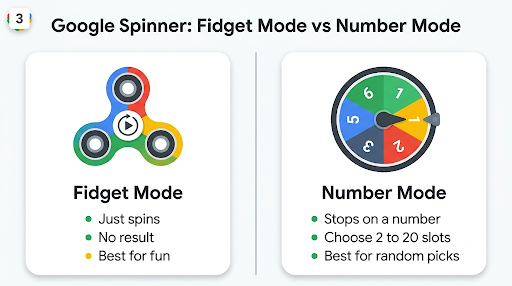
That’s the key difference most people miss.
| Feature | Fidget Mode | Number Mode |
| What it looks like | A three-arm fidget spinner | A colorful wheel with numbered slices |
| Does it land on a result? | No | Yes, one number per spin |
| How it stops | Keeps spinning until you tap it to stop | Slows down and stops on its own |
| Customization | None | Wheel size from 2 to 20 |
| Best for | Killing time, stress relief, fun | Random picks, games, classroom turns |
If you tried the spinner and felt it “didn’t choose anything,” you were probably in Fidget mode. Flip the toggle to Number and try again.
Is the Google Spinner Truly Random?
For everyday use, yes, it’s random enough. Every slot on the wheel has an equal chance on each spin. On a 10-number wheel, each number has a 1 in 10 (10%) chance. On a 2-number wheel, it’s a 50/50 split.
That said, Google hasn’t published how its spinner generates results. Like most browser tools, it most likely uses a pseudo-random number generator. That’s a math formula that produces numbers that look random. It’s perfectly fine for games, classrooms, and “who goes first” decisions.
Two things often confuse people:
- Repeat results are normal. Each spin is independent. The wheel doesn’t “remember” what it picked last time, so the same number can come up twice in a row. That doesn’t mean it’s broken.
- Your swipe speed doesn’t let you aim. A harder flick changes how long the animation runs, but you can’t reliably steer it to a number.
If you’re curious how this works with Google’s other chance tools, our breakdown of whether the Google coin flip is really 50/50 walks through the same fairness questions in more detail.
When randomness really matters (prize drawings with money involved, official raffles, contests with rules), use a tool that explains its method. For example, Wheel of Names states that it uses the browser’s cryptographically secure random function instead of the standard one. For legally regulated giveaways, check your local contest rules too.
Can You Add Names or Words to the Google Spinner?
No. The built-in Google spinner only shows numbers.
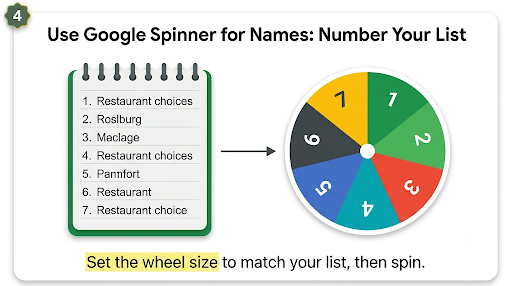
You can’t type names, add colors, upload images, or save a list. This is the biggest gap in the tool, and it’s why so many people end up on third-party wheel sites.
But there’s an easy workaround that takes about 30 seconds:
- Write your list of names or choices on paper or in a notes app.
- Give each one a number, starting at 1.
- Set the Google wheel size to match your list length.
- Spin. Whatever number lands is your pick.
Example: You have 7 restaurant ideas for Friday night. Number them 1 to 7, set the wheel to 7, and spin. If it lands on 4, you’re going to option 4. No debate.
Common mistake: Setting the wheel size bigger than your list. If you have 7 options but leave the wheel at 10, you’ll waste spins on 8, 9, and 10. Always match the wheel size to the exact number of options.
What If You Need More Than 20 Options?
The Google spinner caps out at 20 slots.
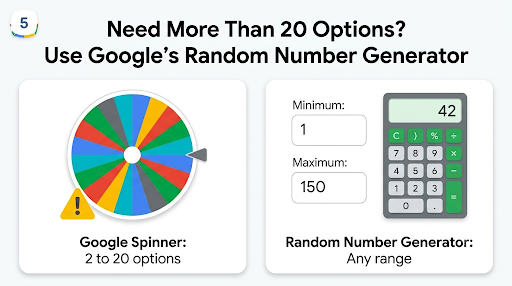
If you have a class of 28 or a raffle with 150 tickets, you have a few options:
- Use Google’s random number generator. Search “random number generator” and set your own minimum and maximum, like 1 to 150. It’s the closest built-in Google option for big lists.
- Use a third-party wheel. Sites like Wheel of Names and Picker Wheel accept long lists you can paste in.
- Split into groups (for fun only). For 40 students, you could spin a 2-slot wheel to pick a group (1 to 20 or 21 to 40), then spin a 20-slot wheel. Each person still gets an equal chance because both groups are the same size.
Watch out: The group trick only stays fair when every group is the same size. If one group has 20 people and another has 8, the people in the smaller group get picked more often.
How Do You Remove a Name After It’s Picked?
You can’t remove numbers from the Google spinner, so you need to manage that yourself.
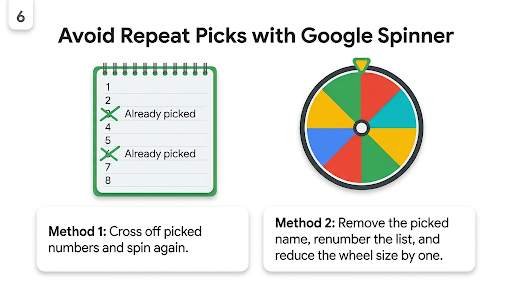
This matters for things like calling on every student once, or drawing first, second, and third place without repeats.
Two simple ways to handle it:
- Re-spin on repeats. Cross off each picked number on your list. If the wheel lands on one you’ve already used, spin again.
- Shrink and renumber. After each pick, remove that person from your list, renumber everyone, and lower the wheel size by one.
If you do this often, a tool with a built-in “remove winner” button will save you time. Wheel of Names, for example, lets you remove the winner after each spin so they can’t be drawn again.
What Are the Best Ways to Use the Google Spinner?
The number wheel works anywhere you need a quick, neutral decision.
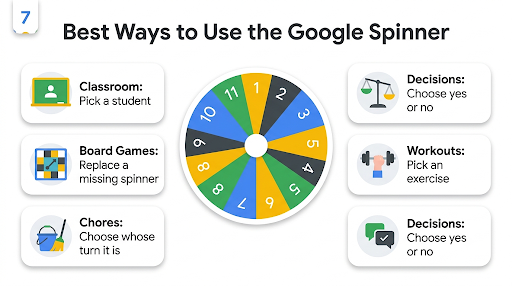
Some practical ideas:
- Classrooms: Number your roster and spin to pick who answers next, who presents first, or which review question to tackle.
- Board games: Lost the spinner from a game box? Set the wheel to the size your game needs. A 6-slot wheel also works as a stand-in die.
- Chores and turns: Settle who does the dishes, who picks the movie, or who sits in the front seat.
- Meetings: Pick a random order for team updates so the same person doesn’t always go first.
- Workouts: Number 10 exercises and spin to build a random circuit.
- Two-way decisions: Set the wheel to 2 for a quick yes-or-no call when you’d rather spin than flip.
Looking for something to play rather than pick? Google has other built-in games you can open the same way. Our guide on how to play Google Tic Tac Toe shows how to start a match against the computer or a friend right from the search page.
Why Isn’t the Google Spinner Showing Up?
If you search “spinner” and only see websites, the widget usually didn’t trigger.
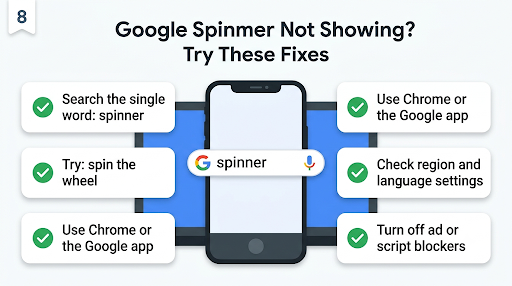
Try these fixes in order:
- Search the single word “spinner.” Longer phrases like “fidget spinner” or “spinner toy” tend to show products instead.
- Try “spin the wheel” as an alternate trigger.
- Switch browsers or use the Google app. When the widget launched in 2017, some outlets reported it didn’t appear in every browser. Chrome and the Google app are the most reliable today.
- Check your Google region and language. Interactive widgets don’t always appear in every country or language version of Google. Setting your search language to English can help.
- Turn off content blockers. Some ad blockers and script blockers stop interactive search features from loading.
- Clear cache or open a private window. This rules out a stuck page or browser extension.
If none of that works, the feature may be temporarily unavailable or being tested differently for your account. Google changes how search results look fairly often.
Google Spinner vs. Other Spinner Tools: Which Should You Use?
Use the Google spinner for quick number picks. Use a dedicated wheel site when you need names, big lists, saving, or sharing. Here’s how the most common options compare.
| Tool | Custom names | Max entries | Best for |
| Google Spinner | No (numbers only) | 20 | Fast, no-setup number picks |
| Google Random Number Generator | No | Any range you set | Large raffles and number draws |
| Wheel of Names | Yes, plus images, colors, sounds | Large lists | Classrooms, giveaways, shareable wheels, Google Sheets import |
| Picker Wheel | Yes | Large lists | Weighted choices and hiding options |
| Google Sheets add-ons (like Winner Spinner Wheel) | Yes, from your sheet | Depends on the add-on | Picking winners from a spreadsheet list |
| Google Slides spin animation | Yes, you design it | Whatever fits on the slide | Presentations and classroom slides |
A Quick Note on Google Slides Spinners
Many YouTube tutorials show how to build a “spinner” in Google Slides using a pie chart and the Spin animation. It looks great on a projector. But know this: a Slides animation isn’t random. It rotates a set amount every time, so it lands in the same spot unless you change the settings. Teachers often get around this by having the class shout “stop” and treating that moment as the result, or by linking the slide to an online wheel. If fairness matters, use a real random tool and show it on screen.
Watch Out for Weighted Wheels
Some wheel sites let you give entries different “weights,” so certain slices are bigger and more likely to win. That’s handy for games, but it also means a wheel someone else built may not be equal. If you’re using a shared wheel for a giveaway, check that weights are turned off or equal.
Frequently Asked Questions
Does the Google spinner work on iPhone and Android?
Yes. Search “spinner” in Safari, Chrome, or the Google app and the widget should appear. On phones, you can flick the wheel with your finger instead of tapping Spin.
Can I use the Google spinner offline?
No. It runs inside Google Search, so you need an internet connection to load it. If you’ll be offline, some wheel sites let you save a wheel locally, or you can use a physical spinner or dice.
Can I change the colors of the Google number wheel?
No. The colors are fixed. The only setting you control is the wheel size, from 2 to 20. For custom colors or themes, a site like Wheel of Names lets you change the look of each slice.
Is there a Google spinner for picking 1 to 100?
Not on the wheel itself, since it stops at 20. Search “random number generator” instead and set the range to 1 through 100. You’ll get an instant number without the wheel animation.
Can I embed the Google spinner in my website or slides?
No. The widget only lives on Google’s results page. You can open it in a browser tab during a presentation and switch to it, or use a third-party wheel that offers a shareable link.
Is the Google spinner safe for kids to use?
Yes. There are no accounts, chats, or ads inside the widget itself. Just keep in mind that it sits on a regular Google results page, so the links below it are normal search results.
Final Recommendation
If you need a quick, fair pick between 2 and 20 options, the Google spinner is the fastest tool around. Search “spinner,” switch to Number mode, match the wheel size to your list, and spin. For names, keep a numbered list beside it.
Move to a dedicated wheel site when you need custom names on the wheel, more than 20 entries, automatic winner removal, or a link you can share with others. And for anything with real prizes on the line, pick a tool that explains how its randomness works.