
To roll a die on Google, just type “roll a die” into Google Search. A virtual six-sided die appears at the top of the results and rolls instantly. Tap Roll to throw it again, or add D4, D8, D10, D12, and D20 dice for board games and tabletop RPGs.
That covers the basics. But Google’s dice roller can do a lot more than most people realize. You can type full dice notation like “roll 2d6+3,” stack different dice in one roll, and add modifiers. This guide shows every trick, explains the odds, and helps you fix the tool when it won’t show up.
Quick Overview
- Open it: Search “roll a die,” “roll a dice,” or “roll dice” on Google.
- Default die: One standard six-sided die (D6) with results from 1 to 6.
- Other dice: D4, D6, D8, D10, D12, and D20 are built in.
- Multiple dice: Search “roll 2 dice,” “roll 3d6,” or “roll 5 d20,” or tap dice buttons to add more.
- Modifiers: Use the +/- button to add or subtract a bonus from your total.
- Cost: Free. No app, download, or sign-in needed. Works on phones, tablets, and computers.
- Not built in: D100, custom-sided dice, roll history, and advantage/disadvantage rolls.
What Is “Google Roll a Die”?
“Google roll a die” is a free, interactive dice widget built into Google Search. It sits above the normal search results and simulates real dice rolls with a short animation.
Google first added a simple six-sided die to Search years ago. In August 2019, it upgraded the tool. 9to5Google reported that the panel gained four-, eight-, ten-, twelve-, and twenty-sided dice, plus a modifier feature aimed at games like Dungeons and Dragons.
Today the dice roller lives in Google’s “Games and Toys” tools panel. It shares space with other built-in utilities like Calculator, Spinner, Metronome, Color picker, Meditate, Tuner, and Flip a coin.
How Do You Roll a Die on Google?
Search “roll a die” and the die rolls on its own.
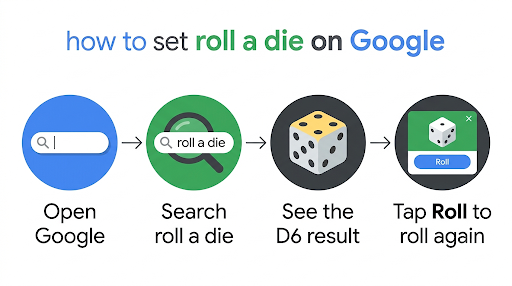
Here’s the full process:
- Open Google.com in any browser, or open the Google app on your phone.
- Type roll a die, roll a dice, or roll dice and press Enter.
- A six-sided die appears at the top of the page and shows a random result from 1 to 6.
- Tap or click Roll to roll again.
- Tap Clear to remove the dice and start fresh.
Your result shows as a Total in the corner of the widget. With one die, the total is simply the number you rolled.
Tip: “Roll a dice” is technically grammatically wrong (“die” is singular, “dice” is plural), but Google doesn’t care. Every version opens the same tool.
How Do You Roll Multiple Dice on Google?
You have two easy ways to roll more than one die: type it into the search bar or add dice by tapping.
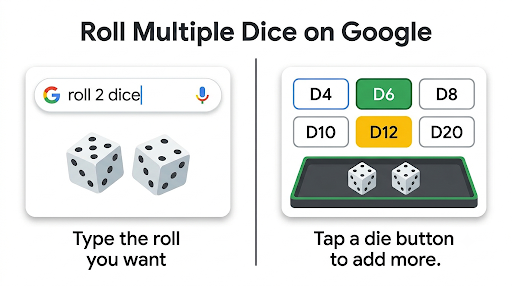
Option 1: Type the number of dice
Search for the exact roll you want. Google builds it for you. Examples that work:
- roll 2 dice or roll two dice for Monopoly, Catan, or craps
- roll 3 dice for games like Farkle variations or Sic Bo
- roll 5 dice for Yahtzee-style games
- roll 4d6 for four six-sided dice
Option 2: Tap to add dice
Open the dice roller, then tap any die button in the toolbar below the rolling area. Each tap adds another die to the tray. Tap the same button three times and you get three of that die.
Google’s tool handles a lot of dice. According to 9to5Google’s hands-on coverage, you can add over 50 dice to the window. Rolling that many may take a moment longer to update.
Want to remove one die instead of all of them? Tap that die inside the rolling area to clear it.
How Do You Roll a D20, D6, or Other Dice on Google?
Type the die name into Google, such as “roll a d20” or just “d20,” and the tool loads with that die.
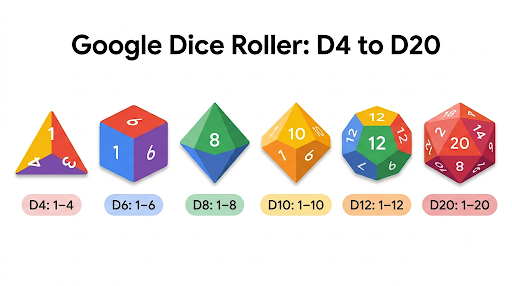
Google supports six die types:
| Die | Range | Odds per number | Common use |
| D4 | 1 to 4 | 25% | Small weapon damage in D&D, like a dagger |
| D6 | 1 to 6 | About 16.7% | Board games, Ludo, Monopoly, character stats |
| D8 | 1 to 8 | 12.5% | Medium weapon damage, longswords |
| D10 | 1 to 10 | 10% | Damage rolls, picking a number from 1 to 10 |
| D12 | 1 to 12 | About 8.3% | Heavy weapons like a greataxe, picking a month |
| D20 | 1 to 20 | 5% | D&D attack rolls, saving throws, skill checks |
Each die type has its own shape and color, so mixed rolls stay easy to read.
How to use dice notation on Google
Tabletop gamers write rolls as NdS. N is the number of dice. S is the number of sides.
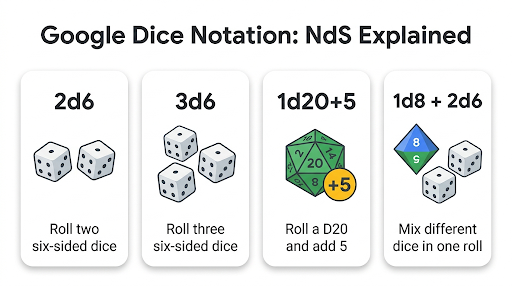
So 2d6 means “roll two six-sided dice,” and 1d20 means “roll one twenty-sided die.”
Google understands this format. Try searches like:
- roll 2d6 for a classic board game roll
- roll 3d6 for old-school D&D ability scores
- roll 2d20 for advantage or disadvantage, then keep the higher result for advantage or the lower result for disadvantage
- roll 5 d20 or roll 3 d12 for bigger pools
How to add a modifier
A modifier is a flat number you add to or subtract from the total. In D&D, a “+5 to hit” means you roll a D20 and add 5.
In Google’s tool, tap the +/- button to add a modifier to your roll total. You can also try a search such as “roll 1d20+5.” If Google does not apply the modifier automatically, add it using the +/- button in the dice widget. The total in the corner includes the modifier.
How to mix different dice in one roll
Say your spell deals 1d8 plus 2d6 damage. Open the dice roller, tap D8 once and D6 twice, then hit Roll. Google adds everything into one total. This is something most competing guides never mention, and it saves real time at the game table.
Can Google Roll a D100 or a Custom Die?
No, Google’s dice roller does not include a D100 or custom-sided dice. The largest built-in die is the D20.
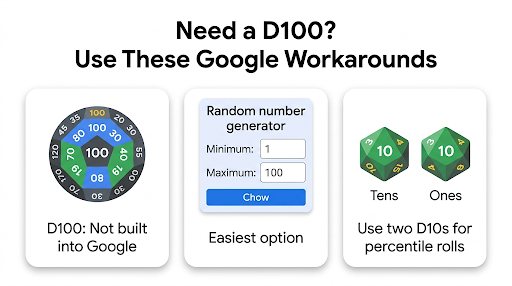
Here are simple workarounds:
- For 1 to 100: Search “random number generator” on Google and set the range from 1 to 100. That gives you the same result as a percentile die.
- Percentile with two D10s: Roll two D10s. Treat the first as the tens digit and the second as the ones digit. Count a 10 as 0. Two zeros equal 100.
- For a D3: Roll a D6. A 1 or 2 counts as 1, a 3 or 4 counts as 2, and a 5 or 6 counts as 3.
- For a D2: Use Google’s coin flip, or roll a D6 and treat odd as 1 and even as 2.
If you need odd shapes like a D7, D30, or D1000 regularly, a dedicated dice roller site or app will serve you better. More on that below.
Can You Roll a Die With Google Assistant or Gemini?
Yes, you can ask by voice, but the assistant on your phone has likely changed. Google began replacing Google Assistant with Gemini on Android phones, tablets, and Wear OS watches starting September 4, 2026, as Search Engine Land reported. The rollout happens gradually, and once a device switches, it can’t go back.
Here’s what that means for dice rolls:
- If you still have Google Assistant (for example, on a Google Nest speaker), say “Hey Google, roll a die,” “Hey Google, roll two dice,” or “Hey Google, roll a d20.” It plays a rolling sound and reads out the result.
- If your phone now uses Gemini, you can still ask it to roll a die. Gemini is an AI chatbot, though, so for anything where fairness matters, like a game with real stakes, the Google Search widget is the safer pick.
- Prefer a visual roll? Say “Search for roll a die” and your phone opens the Search widget directly.
On iPhone, you can open the Google app and search “roll a die,” or ask Siri to roll a die instead.
Is Google’s Dice Roller Really Random and Fair?
Yes, for games and everyday decisions, Google’s dice roller is fair. Each face on a D6 has an equal 1 in 6 chance, and every roll is independent. The die has no memory of past rolls.
Like most web tools, Google’s dice almost certainly use a pseudo-random number generator. That’s a formula that produces numbers that behave randomly for practical purposes. Google doesn’t publish the exact method. The same logic powers its other chance tools, and we break down how this works in our guide on whether Google’s coin flip is really 50/50.
Two things trip people up:
- Streaks are normal. Rolling three 1s in a row feels rigged, but it happens about once every 216 rolls of three. Short runs look uneven. Long runs even out.
- Physical dice aren’t perfect either. Cheap plastic dice with drilled pips can be slightly unbalanced. A virtual die avoids that problem entirely.
If you need certified, atmospheric-noise randomness for something like a raffle or research, Random.org’s dice roller uses true randomness instead of a software algorithm.
What Are the Odds When You Roll Dice on Google?
Knowing the odds helps you play smarter.
Here are the numbers players ask about most.
Rolling two dice (2d6)
With two six-sided dice, 7 is the most common total. Six of the 36 possible combinations add up to 7, so the odds are about 16.7%. That’s why 7 matters so much in Catan and craps.
| Total | Ways to roll it | Chance |
| 2 or 12 | 1 | About 2.8% |
| 3 or 11 | 2 | About 5.6% |
| 4 or 10 | 3 | About 8.3% |
| 5 or 9 | 4 | About 11.1% |
| 6 or 8 | 5 | About 13.9% |
| 7 | 6 | About 16.7% |
Other odds worth knowing
- Rolling a 6 on one die: 1 in 6, or about 16.7%. In Ludo, that’s your chance to get a piece out on any single roll.
- Doubles with two dice: 6 in 36, or 1 in 6.
- A natural 20 on a D20: 5%.
- At least one 20 when rolling 2d20 (advantage): 39 in 400, or about 9.75%.
- Rolling 1, 2, 3, 4, 5, and 6 on six dice at once: 720 in 46,656, or about 1.5%. That’s roughly once every 65 rolls.
- Average results: D4 averages 2.5, D6 averages 3.5, D8 averages 4.5, D10 averages 5.5, D12 averages 6.5, and D20 averages 10.5. For 2d6, the average total is 7.
When Should You Use Google’s Dice Roller?
Use it any time you need a quick, fair roll and don’t have dice nearby. Some practical scenarios:
- Board games with missing dice: Ludo, Monopoly, Snakes and Ladders, Yahtzee, and Catan all work with “roll 2 dice” or “roll 5 dice.”
- D&D and tabletop RPGs: Attack rolls, damage, and saving throws using the full polyhedral set and modifiers.
- Classrooms: Teachers project it on a screen for probability lessons, math games, or picking a random group. Rolling 2d6 fifty times and charting the totals is a great hands-on bell curve demo.
- Quick decisions: Assign each option a number from 1 to 6 and let the die pick dinner, a movie, or who goes first.
- Travel games: No loose dice to lose in the car or on a plane.
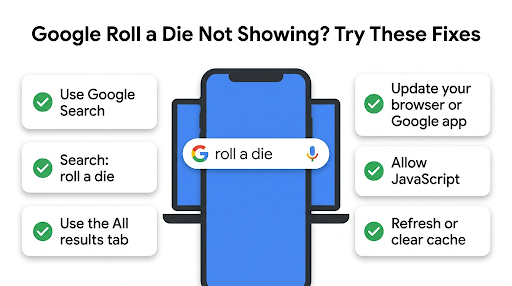
Why Is Google Roll a Die Not Working?
Most of the time, the widget doesn’t appear because of how you searched or where you searched.
Try these fixes in order:
- Use Google itself. The widget only works on Google Search. Bing, DuckDuckGo, Yahoo, and Safari’s default search engine won’t show it. Check your browser’s default search engine.
- Use a simple query. Search “roll a die” or “roll dice” exactly. Long sentences may return web pages instead of the tool.
- Check your language and region settings. The interactive panel shows up most reliably in English. If your Google interface uses another language, try the English query or switch your Search language.
- Turn off AI Mode. If you searched inside Google’s AI Mode tab, you may get a text answer instead of the widget. Switch to the regular “All” results.
- Update the Google app or your browser. Outdated versions may not load interactive results properly.
- Allow JavaScript. The dice animation needs JavaScript. Ad blockers or script blockers can stop it from loading.
- Reload or clear cache. A page that didn’t fully load won’t respond to taps. Refresh, or clear your browser cache if the problem keeps happening.
- Turn off restricted mode on school or work devices. Some managed Chromebooks or network filters hide interactive Google features. Ask your admin if nothing else works.
Google Dice Roller vs Dice Apps and Websites: Which Should You Use?
Google’s tool wins for speed. Dedicated apps win for features. Here’s how they compare:
| Feature | Google dice roller | Dedicated dice sites and apps |
| Cost | Free | Usually free, some with ads or paid upgrades |
| Setup | None, just search | Open a site or install an app |
| Die types | D4, D6, D8, D10, D12, D20 | Often adds D100 and custom sides |
| Modifiers | Yes | Yes |
| Roll history | No | Often yes |
| Advantage/disadvantage button | No (roll 2d20 manually) | Often yes |
| Custom faces (text, emoji, images) | No | Some apps |
| Works offline | No | Installed apps usually do |
Choose Google for quick rolls, family board games, and classrooms. Choose a dedicated roller if you run long RPG campaigns, need a D100, want to track roll history, or play somewhere without internet.
What Other Google Tools Work Like the Dice Roller?
Google hides several handy tools in the same panel. Once the dice roller is open, expand the tools list to find:
- Flip a coin for heads-or-tails decisions
- Spinner for a number wheel or a fidget spinner
- Random number generator for any range, including 1 to 100
- Calculator, Metronome, Tuner, Color picker, and Meditate
On Android phones, Google also offers a hidden bubble level. Our walkthrough of the Google spirit level and how accurate it is explains how to find it and when to trust it.
Common Mistakes to Avoid
- Forgetting to clear old dice. If you added dice earlier, they stay in the tray. Tap Clear before a new type of roll, or your total will include the extras.
- Leaving a modifier on. A +3 from your attack roll will also apply to your next roll if you don’t reset it.
- Reading the total instead of each die. In games like Yahtzee or Farkle, you need individual results, not the sum. Look at each die face.
- Typing “D20” into a non-Google search bar. You’ll get product listings, not a roll.
FAQs About Google Roll a Die
Can Google roll two dice at once?
Yes. Search “roll 2 dice” or “roll 2d6,” and Google rolls both together and shows the combined total. You can also open the single die and tap the D6 button once more to add a second one.
Can I use Google’s dice roller for Ludo?
Yes. Ludo uses one standard six-sided die, which is Google’s default. Keep the page open on a phone in the middle of the table and pass it around, tapping Roll on each turn.
Does Google’s dice roller work on an iPhone?
Yes. Open Safari or the Google app and search “roll a die.” If you use Safari, make sure Google is your search engine, or go straight to google.com first.
Can I make Google’s dice roller full screen?
Google doesn’t offer a full-screen dice mode. On a computer, you can zoom in with Ctrl and + (or Cmd and + on a Mac) to make the dice bigger for a classroom projector. Some third-party dice sites include a true full-screen option.
Can Google roll a die from 1 to 10?
Yes. Search “roll a d10” for a ten-sided die, or search “random number 1 to 10” to use Google’s number generator. Both give each number a 10% chance.
Is a 100-sided die real?
Yes, though it’s rare. A 100-sided die looks almost like a ball, and it can take a while to stop rolling. Most players simply roll two ten-sided dice for percentile results, and online you can use a random number generator set to 1 to 100.
Does Google save my dice rolls?
The dice roller doesn’t keep a roll history. Each new roll replaces the last result, so write down important rolls or take a screenshot if your game needs a record.
Final Recommendation
For most people, Google’s dice roller is all you need. Search “roll a die” for one six-sided die, “roll 2 dice” for board games, or “roll 1d20+5” for D&D. Use the +/- button for modifiers and tap Clear between different types of rolls.
If the widget won’t appear, make sure you’re on Google Search, not AI Mode or another search engine. And if you need a D100, roll history, or offline access, keep a dedicated dice app as a backup. For everything else, your next roll is just one search away.